Showing posts with label Student Technology. Show all posts

Tuesday, October 20, 2020

iPad for College?

Choosing a device for college is a big decision, but is there a device being overlooked for the running?

Taking a dive into what it would be like for students or faculty to use an iPad in the college classroom was something that our team was curious about. We have found that Apple's iPad has made some major improvements over the years on capabilities offered and applications to use. Looking deeper into what the new iPad's are offering, we wanted to see if it would be able to meet the needs of day to day college life. 

    Whether it be checking/grading assignments, emailing a colleague or student back, holding a virtual meeting, or presenting power points. We have a handful of the biggest features we found to make having an iPad in college, seem a little more achievable.

Specs 

    The options with the iPad have a lot of different variables that go into play when considering what is needed from the iPad when you are looking at needs. The two anyone should look for would be between the iPad Pro 4th generation or the iPad Air 4th generation.  Both offer just Wi-Fi or Wi-Fi and Cellular capabilities, cellular would more than likely make the monthly phone bill rise. With teaching/learning from home, the cellular might be an addition that would aid with Wi-Fi that could have had issues in the past when trying to connect. The iPad Air comes in 3 additional color choices, Rose Gold, Green, and Sky Blue. 

    The iPad Pro comes in either 11 or 13-inch liquid retina display with Pro-motion technology and true tone. Displays while the Air only has options for the 11-inch liquid retina display. Both models are compatible with magic keyboards or smart keyboard folio, as well as the 2nd generation of Apple Pencils. The keyboard would specifically come in handy if you prefer typing on a physical keyboard rather than the display. Storage size varies with the iPad Pro being able to go up to 1 terabyte of storage and the iPad Air having a max capacity of 256 gigabytes. iPad Pro comes in with the double lensed camera with a 12 megapixel and 10-megapixel ultra-wide camera, and the iPad Air has a 12-megapixel wide camera. 
   
    The differences between the two models do not stray away from the same makeup, the iPad Pro having more camera/speaker options, brighter true tone flash, and promotion technology. The specs show that you can't really go wrong with either model, it just comes down to what size and what capabilities will you need. 

Taking it to the Classroom

    Incorporating your new device into the classroom/work setting, knowing what is compatible, what could aid you more, and what the deciding factor is on the decision you have to make. A lot of the needed software or applications that Emporia State uses are able to be downloaded in the app store. If you prefer to use web-based sites rather than the application, adding a shortcut of the website to your home screen is also an option. 

    A lot of the applications or software that students use are also used by faculty. Faculty, the software, or applications you use specifically for the college also have options for those. 

    Some of the apps that are compatible with both models are:
  •   Some of the apps that are compatible with both models are:
    • All Google Suite applications
      • Google Drive, Slides, Sheets, Docs, etc. 
    • Hornet 365
      • Although this is not an application, you can create a shortcut tile for your home screen to take you directly to the website. 
    • Canvas
      • Input/check grades, respond to student messages, upload lectures, etc.
    • Adobe Creative Cloud
      • Photoshop, Acrobat, Illustrator, Lightroom, etc.
    • Microsoft Office
      • Excel, Outlook, PowerPoint, Publisher, Word, etc
    • LinkedIn
      • Stay connected with students, faculty, or employees promptly and professionally.
    • Quizlet
      • Creating or reviewing study guides, having review sessions

  Note Taking

    Taking notes is something a lot of college professionals and students have preferences on which way they take notes. Apple has provided different options for users to be able to take notes the way they want to, whether it be written or typed, you have the option for both on either model. The iPad Pro got a new capability to split-screen, and allow you to have more than one app or tab open at once, being able to keep lectures and notes open at the same time. Apple Pencils changed the game when they released the second generation of pencils. Within your notes app or an app of your choice, you can use the pencil to write, highlight, bold, relocate, and much more with your text. The pencil gives you quick options to switch from which type of writing utensil you would want to be used with the click of its side button. 
        Two of the apps that we have seen recommended by students multiple times are Notability and Good Notes. Both of these applications require a purchase to download but come at a very minimal price. Notability is $8 to obtain while Good Notes is $10, if you think about it, that is two Starbucks drinks from the Union to be able to take notes you love in your courses! Notability allows you to download notes, slides, and PDF's to interact and personalize to your preferences. Notability is also compatible across all Apple products as well, allowing you to be able to pick up where you left off on any of your devices.
    Good Notes allows you to import lectures, PDF's, or notes and make them your own separate documents. A cool feature about good notes is being able to copy or scan diagrams within your notes, and being able to pull the graphics from the notes you downloaded or scanned. This could come in handy when wanting to put a diagram in your lecture or pull a graphic from a PowerPoint. These features will all enable you to take the notes that you want to take and make them fit best for your study habits. 

Keyboard

    If you are a person that would prefer to type their notes out rather than write them, you are not alone. Some students have an easier time typing their notes and getting everything the professor is saying. Apple has updated its Apple Keyboard for the release of their new iPad Pro series. With the new features, they added and the thinness of the keyboard while still on the iPad is a good reason to consider for school. It is not as inexpensive to be able to compare it to purchasing a Starbucks drink, more rather an actual piece of technology. The cost of the Apple Keyboard is not an underwhelming cost but just a preferred choice of $200. 

The conclusion we can draw from the searching and research we found would prove that iPads are very capable of being used for college loads. Whether it be for textbook usage, editing, and personalizing your notes, or just finding what you need to be a productive and efficient student in your classes.


As always, thank you for reading and any questions or concerns can be answered by contacting the IT Help Desk.

Stay healthy Hornets!

Dakota Taylor
Social Media Student Assistant
Web & Digital Strategies


Wednesday, September 9, 2020

Microsoft Teams for ESU

Microsoft Teams is now being rolled out to students of Emporia State to utilize! Teams is a speedy and productive communication tool for students, faculty, and staff to use! We have been going through all of the options that could be a valuable tool to incorporate within the class and office. We will be going through all of the basics of what you need to know, walkthroughs to follow along with, and screen recordings to make things a little easier. 


Downloading and Logging in


The first thing you would need to do is download Teams for your device, whether it be an application on your phone or your personal computer. To download Teams, you would paste “esutechsite.com/teams” in your URL bar at the top of your browser. Click “Get Teams”, you’ll then be taken to a Microsoft page that will detect the appropriate version for your device, then click “Download Now”. Run the installer or follow the prompts for your device.


Now that you have Teams, it’s time to log in. When prompted, enter yourusername@emporia.edu, even if you don’t have an @emporia.edu email account. Yes, use @emporia.edu, even if you don’t have an @emporia.edu email address. In Microsoft Land, it’s just part of your account. And remember you can’t use your @g.emporia.edu address--that's Google services only. And that’s it, you are not all set to begin using Microsoft Teams at ESU.


Creating a Group


Microsoft Teams is a tool for securely chatting, video calling, and collaborating with your group, team, or other students. You can chat with one, two, or as many ESU users as you’d like. But for ESU groups and student organizations, we can set up a special team that has your members preloaded for you. 


This is called a SharePoint Group for students. In addition to maintaining a list of group members, your SharePoint Group will also provide online file storage for hosting any files you share within Teams. To request a SharePoint Group, go to esutechsite.com/teams, and select "Teams for Students". Scroll down to Groups. Click “Request a SharePoint Group for Students”. Only advisors or organizational leadership should make requests.


Once your request is approved by the Center for Student Involvement, you’ll be able to access your new Group by clicking the “Teams” Icon from the left-hand menu bar within the Teams application. Once we’ve set up your Group, you can add or remove membership through the web portal or via the IT Help Desk!


Video Calling

You can do a video call with one, two, or as many ESU students as you’d like. Simply click the “New Chat” icon. Enter the name or username of the user or users you’d like to call.


You can video call an individual or add as many users to your group call as you’d like. With one click, you can start a video call with your entire group! And if you or your users don’t have a webcam, they can still join via audio. With Microsoft Teams, you have on click communication with individuals--however, you prefer to collaborate. 


Sharing Files

Sharing files is easy within Teams, start a new chat or go to an existing one. Or if you are an ESU group or organization, click "Teams" and then go to your group. Now, click the paper clip icon and select the file you’d like to share. Type a message if you’d like, then click the “send” icon. 


That’s it! Now that you have shared the file within anyone in that chat or Group.

To see your previously shared files, click "Files" at the top of the chat window. 


Chat + History

You can chat with any ESU user that you would like, simply click on the “New Chat” icon. Enter the name or username of the user or users you’d like to chat with.


You can chat individually, or add as many ESU users to your chat as you’d like. Now that you have added your users, it’s time to talk! Start typing, send them an emoji, send them a file--whatever you’d like.


And the best part, your chat history is retained from day one. You’ll never have to wonder if you shared that file or remembered to share a message--it’s all there to search or scroll through. We like to say it goes back to the beginning of time--at least the time you started using teams!


The Web Version


Teams is available for Windows, Mac, iPhone, iPad, and Android but it’s also available from your web browser, and here’s how you can get to it. Go to esutechsite.com/teams and click "Login". Enter your username in the form of username@emporia.edu

Yes, use @emporia.edu, even if you don’t have an @emporia.edu email address. In Microsoft Land, it’s just part of your account. And remember you can’t use your @g.emporia.edu address--that Google only. Once you’ve entered your username, enter your ESU password. 


And that’s it, the web-based version of Teams will load and you’re all set to begin chatting, calling, and collaborating!


As always if you have any questions regarding anything tech related

Friday, April 10, 2020

Asking Questions/Finding Answers

Asking Questions/Finding Answers

Are you seeking help?
Can’t meet up with anyone to resolve your issue?
Is your professor or manager not providing you with enough information to succeed?
Fret not Hornets! Where there's a will, there's always a way! We're going to help you find the solutions and online platforms, where you can find all the answers to your important questions.

Schoolwork:

  • Many courses have discussion boards on Canvas! This is available for you to ask and answer course related material. If you don’t understand something, ask for help.
     
  • Schedule a Zoom meeting with your classmates! Zoom is probably your best option, because you can share your screen and showcase what you are trying to figure out. Zoom also has the functionality for remote control access. This allows the person who is trying to help, control your machine until the issue is resolved.
     
  • If you're still having trouble understanding the material, don’t forget that you can email / virtually meet with your professor on Zoom, to clarify your questions and get a better understanding on the material. Professors are here to help you succeed!
  • You can always check the ESU Learn Anywhere site for campus resources or reach out to us and we'll help direct you to the person who can answer your question.

Job tasks:

  • The best option when it comes to finding a solution to your work related question, is to communicate with your team on the established communication channels.  Is that email?  Teams? SharePoint? Perhaps now is the ideal time to establish that channel!
     
  • Schedule a meeting with a manager or coworker(s). This will give you an opportunity to ask all your questions and get the answers. Make a list of questions before the meeting so you don't miss anything.
     
  • If no one is available--that's not a problem! You have the greatest invention known to us, GOOGLE.  Ask Google any question you have, and you are most likely to get an answer. Use it with caution!

It's important to realize that these are unprecedented times for all of us! So, don’t be scared to ask for help!


Anton Levanovich
Student Web Developer
Web & Digital Strategies

Friday, April 3, 2020

Keeping Yourself Entertained in the Time of Coronavirus

The coronavirus has impacted everyone from business owners and families to students. I'm sure we've all seen the memes/videos about how bored people have gotten during these times, but that's no reason to worry. I am going to share some of the best entertainment sources you can take advantage of during this pandemic!

As a student, you are given 6 months free Amazon Prime by signing up with your @g.emporia.edu account. Amazon Prime offers many things free with its subscription such as movies, TV shows, books, and discounts on select products! Follow this link to learn how to activate your trial and see some of its benefits!

Quibi Promo imageA new streaming service, Quibi, is offering a 90 day free trial after they launch this April 6th. Quibi is an interesting concept because they will be offering original, new, TV shows... but the episodes will be 10 minutes or less in duration. This is an excellent platform for short study breaks or to simply invest less time per episode during your content binges!


Netflix is one of the most popular streaming platforms nowadays, and because of that, I am going to give you all my top 3 series to watch!
    Altered Carbon poster
  1. Ozark - Ozark is a Netflix original series that follows a financial advisor, and his family, as they try to keep their best to deal with money laundering issues. There are three seasons out already, and I expect there to be at least one more in the future.
  2. Altered Carbon - Altered Carbon is also a Netflix original series that follows Takeshi Kovacs, an elite soldier in a futuristic world. It's incredibly interesting to watch and learn how their world is. There are two seasons out already, and I would expect more in the future!
  3. Money Heist - Money Heist is also a Netflix original series that follows a group of criminals and their plan to rob the Royal Mint of Spain. It's action packed with a lot of clever moments. There are four seasons out, which includes the fourth season which came out TODAY, April 3!

Hopefully some of these suggestions can give you some entertainment in this time!

Sam Derksen
Web Developer
Web and Digital Strategies

Friday, March 27, 2020

New Apple Products

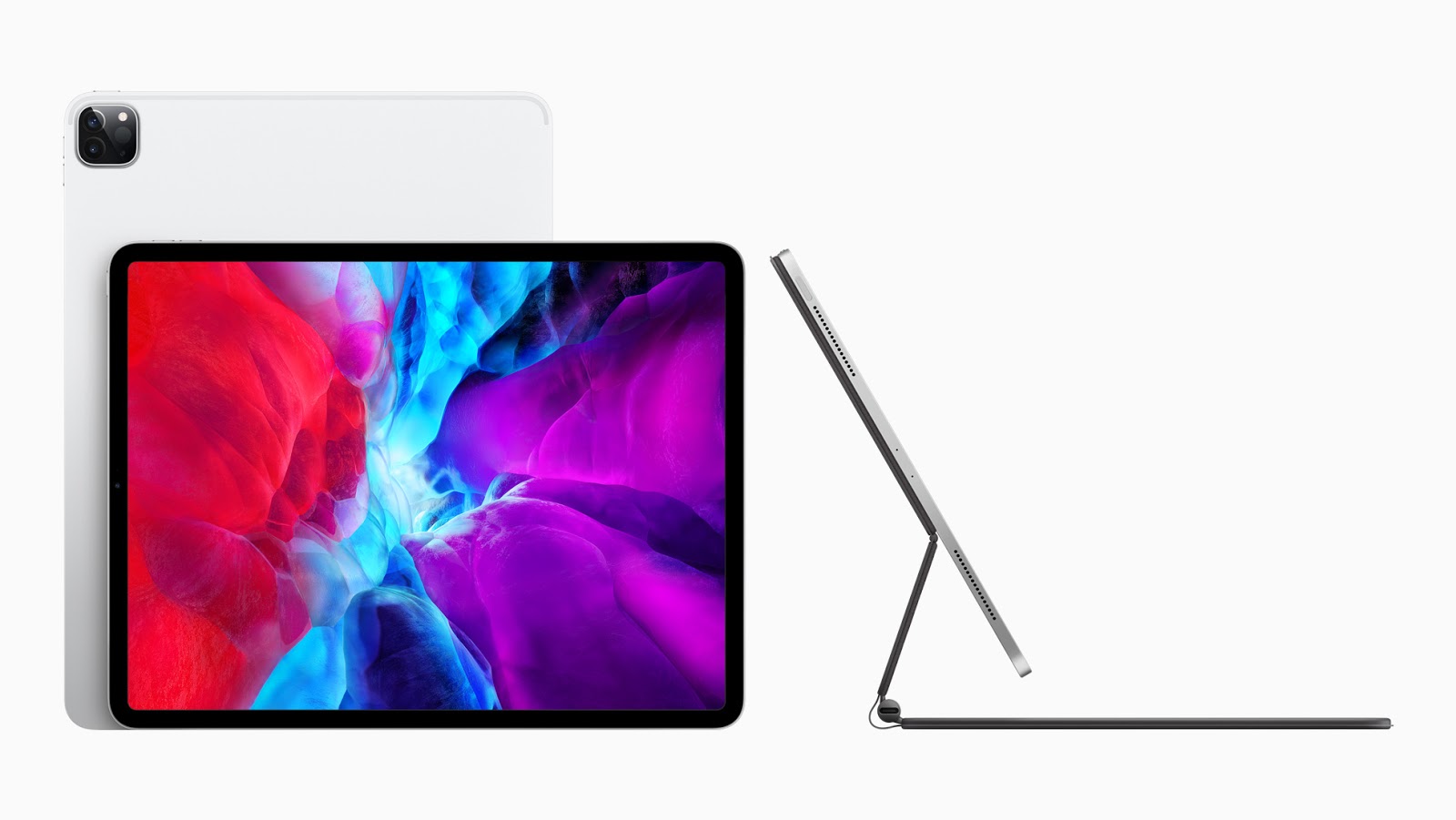
Apple iPad Pro 2020In the midst of this crisis, Apple managed to release the new iPad Pro. One could argue that there couldn't be a better time due to many educational institutions moving their classes to an online platform. iPads are becoming more and more similar to your traditional laptops with enhancements that allow you to do most things that you could do on a Windows or Mac laptop. The new iPad Pro boasts an A12Z bionic chip, which is slightly better than the A12X chip included in the last version of the iPad Pro. This means that this iPad will run all of the software you would need for school flawlessly.

Along with the introduction of the new iPad, Apple released a new 'Magic Keyboard' to go hand-in-hand with it. The Magic Keyboard seems magic, because your iPad magnetically connects to the stand and 'floats' while being able to type. Along with this cool feature, the Magic Keyboard also includes a trackpad, making the iPad seem like a traditional laptop.


Sam Derksen
Web Developer
Web and Digital Strategies

Group Collaboration

Group Collaboration


Is it your first time taking an online class? Are you stressed about not being able to communicate with your group mates? Don't worry, we've got your back. In this post, we'll cover what you need to know about virtually collaborating with your groups.

Sometimes collaborating with your group gets complicated; and bad communication can result in bad grades (and a bad mood.)    

We are here to help make collaborating online simple. All you need is a good internet connection and a reliable device. (A Windows laptop, a MacBook, an iPad, or even a smartphone.)

Need a new way to collaborate with your group on projects, assignments, and studying? 
Zoom is a great video chat software that allows you to not only chat, but also share your screen and give your group-mates control of your computer. Zoom is free and unlimited to all ESU students and employees.

Looking for a software that allows you and your groupmates to share and edit documents?
Google products such as Google Docs, Google Sheets and Google Slides. They are simple to use and convenient when everyone in the group must work on the same file. 

Do you not like video or audio chatting?
Text-based chat using messengers like Apple Messages, GroupMe, Snapchat, Facebook Messenger, and WhatsApp, may be more to your liking. You can also chat on Canvas under the “chat” tab. If none of those sound good to you, then emailing your groupmates is the always an option. 
(Just remember that all group members need to be diligent in checking and responding to messages!)

Are you trying to find a safe place for storing your files online where your group-mates can also access them?
OneDrive and Google Drive are your best options in this situation. Upload your document and share it with people you want to have access to the document. You can allow them to only view the document or both view and edit it; it’s totally up to you.  

Working on an individual project?
Emporia State University offers free access to all the Office365 products. Word, Excel, Access, PowerPoint and more. All ready for you to use free of charge as a student. You can download them at hornet365.com

Having online classes might be stressful at first, but services we all have access to make our lives much easier. Check back weekly for more useful tips, and more! Stay safe, stay healthy and stay inside.

Tyler Parker
Social Media & Marketing Student Assistant

Web & Digital Strategies

Remote Work + Study

Remote Work + Study


Working + Studying from home might seem like a terrifying and complicated concept, but it doesn't have to be. We know with all the distractions you have freely available at your home, it can be quite easy to forget a quiz you may have to take, or a class you may have to attend, or work your supervisor had assigned to you.

Here are some tips to keep you in check and help stay on track, whether it be class work or work projects and tasks. 


For School: 

1. Be on time

If you have an online meeting or zoom class session, make sure to have the date and time on your calendar. Participation counts and you might lose points if you don't follow the schedule. Make sure to submit your work on time to avoid losing points.

2. Limit all distractions around you

Distraction is your biggest enemy when it comes to studying from home. Make sure you stay in a quiet room with limited distractions.
 
3. Keep up with your courses  

Ensure you have a flow of communication with your professor and classmate, be sure to check up on any new assignments, quizzes, or exams you may. Check out (link to taylor's blog post on how to maintain a schedule) for more information.

4. Time yourself

Start a timer! Work in 40 minute chunks. This will ensure that you have put in hard work for 40 minutes straight, and also help you feel accomplished when taking a short break.

5. Ask questions

Do not stress if you're having a difficult time understanding concepts in class. You have all the tools needed in order to communicate with your professors, and peers.  

6. Take tests and quizzes in a quiet room. 

Always stay focused  when it comes to time-sensitive material like a test or quiz.


For Work: 

1. Be on time

Even though you are working from home, you still have a tight schedule to follow. Be ready to work diligently when you are scheduled to.

2. Maintain a flow of communication 

Ensure you are communicating with your supervisor on how things are going. Your supervisor must know what everyone is working on to keep track of the progress and make plans for the future.

3. Be Proactive  

Be sure to ask your supervisor how you could be helping in continuing with the daily workflow.


If you have never worked or studied from home, don’t worry! Your supervisor and professor will do everything they can to aid in this process and help you stay on track.

Now, time to stay focused, and study hard, and work hard. Good luck Hornets!


Anton Levanovich
Student Web Developer
Web & Digital Strategies


Monday, March 23, 2020

Microsoft Teams vs. Zoom - Which Should You Use?

Teams vs. Zoom

As we move our classes online, you may wonder, "What is the difference between Teams and Zoom?"

ESU offers a plethora of resources for conferencing and communications, and today we'll be comparing two: Microsoft Teams and Zoom. Both software are great when it comes to online collaboration, but they both have their strengths and weaknesses.

Both Microsoft Teams and Zoom offer individual and group communication through messaging and video conferencing. This can come in handy when working on group projects, online instruction, presentations, or traditional face-to-face meetings.  So the question is, when does one work better than the other?


Microsoft Teams:

  • Quick Messaging
  • File Sharing
  • Push-Notification Instant Messaging
  • Text-Based Group chats

Zoom:

  • Massive Video-Calling
  • Online Classroom
  • Phone Dial-In Service
  • Screen Casting
  • Screen Recording

Both services offer a mobile app as well, which works best with iPhones.

Looking to download Zoom? Click here.
Looking to download Microsoft Teams? Click here.

For more information, watch episode 12 of IT Only Takes a Minute where we discuss these further in depth.


Questions? Contact the IT Help Desk and we'll be happy to help you out!
Call: 877-341-5555
Email: helpdesk@emporia.edu


Tyler Parker
Social Media & Marketing Student Assistant
Web & Digital Strategies

Video Conferencing Etiquette

Video Conferencing Etiquette

You might encounter several video conferences over the next few weeks of ESU's online education. Some may be well experienced in this are, while other may be completely new to the idea of a video conference. It is important to know how to behave in a virtual classroom so you and your classmates get the most out of the experience.


  1. Wear Work-Appropriate Clothing - Follow your organization’s rules and dress appropriately. Be smart when it comes to dressing up, because you are a representation of your organization.
  2. Ensure Your Technology Works Correctly - Check the devices you want to use for the conference. Make sure everything works and you have a stable network connection. 
  3. Use the Proper Software and Hardware - Make sure you have every software used for conference calls. You want to be prepared and have everything you need before you take or make a call. 
  4. Be on Time - Your responsibility is to be on time. Being on time is always important and makes you look good inside and outside of your organization. 
  5. Have the Right Light -  Lighting is very important. Make sure the room has a lot of light and people can see everything you use during the conference. 
  6. Mute Yourself When Not Speaking - Even though you might not be speaking, your microphone can still pick up minor background noises. Background noises might often distract your peers. Make sure you follow proper etiquette and limit the amount of noises.  
  7. Limit Your Distractions - Don’t get distracted. Distraction is your biggest enemy. Conference calls are important, and you always need to be focused. 
  8. Engage - Participate as much as possible. Your opinion matters and your peers will appreciate you sharing it with them. 
  9. Pay Attention - Paying attention is the key. Try not to miss information, because you will most likely miss something important and won’t have anyone to ask at home. 
These are 9 essential tips when it comes to video conference etiquette. If sought through, you're sure to get the best experience out of your online classroom!

For an instructional video detailing these tips, check out our YouTube video.


Tyler Parker
Social Media & Marketing Student Assistant
Web & Digital Strategies

Sunday, November 24, 2019

Microsoft Excel Tips & Tricks

Microsoft Office: Excel is an extensive program that can be incredibly helpful when working with tables, spreadsheets, and graphs. It can be a difficult program to learn, as its' functions and capabilities are so vast that new users can quickly become overwhelmed. Here are a few tips and tricks we use in the IT department that can hopefully make life easier for you.

Input The Same Data Into Multiple Cells

If you ever need to input the same thing into more cells than one, there's a simple solution to do it all at once; that way you don't waste time retyping the same thing over and over.

Hold Ctrl while you click on all the desired cells and then type your information into the last selected cell.

After typing your information, hit Ctrl+Enter to automatically place the same information into all selected cells.


Wrap Your Text To Fit The Cell

Have you ever tried to type something in Excel, and for some reason it wants to extend past the cell? There's a simple fix to that as well: Wrapping your text.

Click the cell you wish to use, and type your information into it as normal.

After that's done, click Wrap Text at the top of your screen to fit your text into the cell. (Hint: You may have to adjust the size of the cell to fit lengthy words by dragging the edge to the right.)


Autofill Your Cells

Sometimes you'll find yourself inputting repetitive data such as names, dates, or other numerical information. Excel can detect patterns and fill in the rest of your column, granted the pattern is correct.

After typing in 2-3 cells of your column, Excel should be able to take it from there. Move your cursor over the bottom right corner of the selected cell and it should turn into a black "+"

Click and drag down the desired amount of cells, and Excel will autofill the rest of the cells with data that fits the pattern detected.


Keyboard Shortcuts

Similar to our Microsoft Word blog post, Microsoft Excel has a plethora of keyboard shortcuts that can save you time and effort when using the program. Here's a few that we find useful in our day-to-day excel tasks.


Tyler Parker
Social Media & Marketing Student Assistant
Web & Digital Strategies
Tuesday, November 19, 2019

Microsoft Office Keyboard Shortcuts

Microsoft Word - Tips and Tricks

Microsoft Office is a great tool for typing your papers, resume, or even just taking notes. At the surface, the program can seem simple to use; but there are a lot of hidden features you might not know about.

Here's a quick tip: Be sure to save all your precious files on your ESU OneDrive, to have convenient access to your files from any device.

These are the most convenient keyboard shortcuts that can save you valuable time.

Document Shortcuts
  • Ctrl+N: Create a new document
  • Ctrl+O: Open an existing document
  • Ctrl+S: Save the document
  • Ctrl+W: Close the document
Action Shortcuts
  • Ctrl+Z: Undo previous action
  • Ctrl+Y: Redo previous action
  • Ctrl+C: Copy text/graphic to clipboard
  • Ctrl+V: Paste text/graphic from clipboard
Movement Shortcuts
  • Ctrl+Left/Right Arrow: Move one word to the left/right
  • Ctrl+Up/Down Arrow: Move up or down one paragraph
  • End: Move to the end of the current line
  • Ctrl+End: Move to the end of the document
  • Home: Move to the beginning of the current line
  • Ctrl+Home: Move to the beginning of the document
Formatting Shortcuts
  • Ctrl+B: Bold formatting
  • Ctrl+I: Italic formatting
  • Ctrl+U: Underline formatting
  • Ctrl+Shift+D: Double underline formatting
  • Ctrl+Shift+W: Underline formatting to words only (No spaces)
  • Ctrl+[ or ]: Increase/decrease font size
View Shortcuts
  • Ctrl+Alt+S: Add/Remove split window view
  • Ctrl+Alt+O: Outline view
  • Ctrl+Alt+V: Print layout view
  • Ctrl+Alt+N: Draft view
  • Ctrl+F2: Print preview view
These shortcuts can be incredibly helpful when typing up those last-minute papers that you forgot about. We all know how valuable every minute is when that 11:59 pm due date is coming up fast. Hopefully this article can save you from wasting your time, and maybe even save your grade.


Tyler Parker
Social Media & Marketing Student Assistant
Web & Digital Strategies

Sunday, October 27, 2019

Microsoft Surface Pro X

Microsoft is at it again with the announcement of the new Surface Pro X. This 2-in-1 laptop also acts as a tablet and offers a slim, sleek design, next-gen graphics, and plenty of storage. Aiming to be the perfect laptop for business, this model succeeds. Whether it's used in the conference room or the classroom, let's take a look at how the Surface Pro X can benefit you.

Display
The Surface Pro X offers a 13" touchscreen display, allowing you to see and do more an a near edge-to-edge screen. The screen automatically adjusts the brightness based on your environment's lighting.

Design
Microsoft's thinnest 2-in-1 laptop measures in at an astonishing 7.3 mm so it stays out of your way and fits right into your backpack with no unnecessary bulk. The laptop is offered in a matte black design, complimenting the anodized aluminum casing. Microsoft also provides a carbon composite, fan-less thermal cooling system to make sure the device doesn't overheat.

Capabilities
Microsoft offers a removable SSD which comes in 128, 256, or 512GB options. The battery life offers 13 hours of typical device usage, so you don't need to worry about taking your charger to class. Campus WiFi not working? No problem. The Surface Pro X includes LTE Advanced Pro 4 so you can use cellular data to finish those last-minute projects.

This laptop is perfect for students for it's convenience, capabilities, and innovation. Made up your mind? The Surface Pro X retails for $999 and is available at Best Buy or Amazon.com and Microsoft.com. But don't worry, Microsoft offers a student discount of 10% on Windows devices so you're not breaking the bank.

Tyler Parker
Social Media & Marketing Student Assistant
Web & Digital Strategies

Friday, September 27, 2019

iOS 13 and Watch OS 6

iOS 13 and Watch OS 6

Since Apple released the well anticipated iOS 13 and Watch OS 6 updates yesterday, I've had the opportunity to put it through a week of testing.

If you have an iPhone SE, 6S, and everything after that (the 7, 8, X, XR, XS) and have been thinking about updating, go ahead! You're going to enjoy the new life it breathes into your Apple devices.

NOTE: Just to be on the safe side, be sure to back up all the valuable data on your device and keep the phone plugged in while it updates. Better safe than sorry, trust me.

Since a majority of our users are iOS users, I'm sure you're wondering, "What do I get from this update and why should I even bother?" Well, I'm glad you asked.

Let's start with the top features from iOS 13.

  • You now have a system wide Dark Mode. Let's sign a petition and dark mode everything!
  • Swipe Keyboard. Try swiping a word on your keyboard! It's an easier and faster method for typing with one hand! They call it 'QuickPath'..
  • Faster FaceID. Apple claims 30% faster!
  • New Built-In Photo and VIDEO Editing Tools. If you're a digital creative, you're going to appreciate this!
  • Find My (Now combines Find my iPhone and Find my Friends). Now, even if your iPhone is not connected to the internet you'll be able to tell where it is.
  • Files. Now you have the ability to connect external drives and USB's natively. Along with unzip capabilities.
  • Safari. You now have access to a built-in download manager! Along with upgraded browser capabilities.
  • Reminders.  App Updates.
  • Notes. App Updates.
  • Mail. App Redesign
  • Siri. Siri now sounds a lot better!
  • Better Screenshots. 
  • Control your Contact Information Persona. If you someone adds you as a contact, the name and image you want will automatically pull into their contact.
  • Memoji Stickers. Extend your Animoji persona and create new Memoji stickers.
  • Sign In with Apple. Before you had the option to make an account, or use the convenient Sign in with Google and Sign in with Facebook. Now, there's a new way to sign in! 
  • Use your Gaming controllers. If you enjoy mobile games, now you can connect your favorite Xbox or PS4 Controller and start gaming!


Next we got Watch OS 6.
  • New Watch Faces. Cool new styles to try!
  • Dedicated App Store. All the more apps for your watch!
  • Noise Level. If you spend too much time in a loud environment, you'll be notified!
  • Voice Memos. Got a quick thought? Narrate it to your new best friend.
  • Cycle Tracking. Apple's big on Health
  • Calculator. Calculate right on your wrist! Take it a step further and now you can easily know how much the tip will be and how to evenly split the bill.
  • Activity Trends. Because the more health data you have, the more you strive to succeed!


There were minor bugs I have seen or had colleagues report to me. However, Apple has released iOS 13.1 today, and it should squash all the bugs (if any) and provide improvements to your overall experience. Apple also released iPad OS today and I will be going over it next week! 


Have you updated to iOS 13.1 yet? If so, what are you currently enjoying about it?


Saandhyarag Sasidhar
Student Operations Manager
Web and Digital Strategies

Friday, August 30, 2019

SkyPrint PLUS - Copy, Scan and Print


Printer
We've got all New SkyPrint PLUS Stations throughout campus. 

You can now use the same printer for both your Black/White and Color printing needs. 

Need to copy documents? You now can from the same station! 

To make it even better, you can now scan documents and send it to your Email, OneDrive or Google Drive, all from the same SkyPrint Plus Station!


To sign into your account, use the built-in keyboard on the printers. 


OR 

If you're ready to 'tap and go', set up fast login and start using your Hornet Card for a quick, easy and secure way to login into SkyPrint.


Rest assured, the quality of prints are now twice as good.

SkyPrint Plus Logo

If you're having troubles, be sure to read the instruction manuals attached to the printer.

Find more info, including all of our SkyPrint locations from Hornet 365's TechSite
SkyPrint Plus Station
Hornet Card Scanner


Saandhyarag Sasidhar
Student Operations Manager
Web and Digital Strategies