Microsoft is at it again with the announcement of the new Surface Pro X. This 2-in-1 laptop also acts as a tablet and offers a slim, sleek design, next-gen graphics, and plenty of storage. Aiming to be the perfect laptop for business, this model succeeds. Whether it's used in the conference room or the classroom, let's take a look at how the Surface Pro X can benefit you.
Display
The Surface Pro X offers a 13" touchscreen display, allowing you to see and do more an a near edge-to-edge screen. The screen automatically adjusts the brightness based on your environment's lighting.
Design
Microsoft's thinnest 2-in-1 laptop measures in at an astonishing 7.3 mm so it stays out of your way and fits right into your backpack with no unnecessary bulk. The laptop is offered in a matte black design, complimenting the anodized aluminum casing. Microsoft also provides a carbon composite, fan-less thermal cooling system to make sure the device doesn't overheat.
Capabilities
Microsoft offers a removable SSD which comes in 128, 256, or 512GB options. The battery life offers 13 hours of typical device usage, so you don't need to worry about taking your charger to class. Campus WiFi not working? No problem. The Surface Pro X includes LTE Advanced Pro 4 so you can use cellular data to finish those last-minute projects.
This laptop is perfect for students for it's convenience, capabilities, and innovation. Made up your mind? The Surface Pro X retails for $999 and is available at Best Buy or Amazon.com and Microsoft.com. But don't worry, Microsoft offers a student discount of 10% on Windows devices so you're not breaking the bank.
Tyler Parker
Social Media & Marketing Student Assistant
Web & Digital Strategies
Showing posts with label Windows 10. Show all posts
Sunday, October 27, 2019
Friday, February 9, 2018
Introducing Whiteboard from Microsoft
Have you ever brainstormed with your team and listed everything on a marker board only to have to resort to taking a blurry photo of it for posterity? How did that work out for you?
Well, now, Microsoft has come up with a solution.
As an ESU student, faculty or staff member, you have access to preview a new tool called Microsoft Whiteboard.
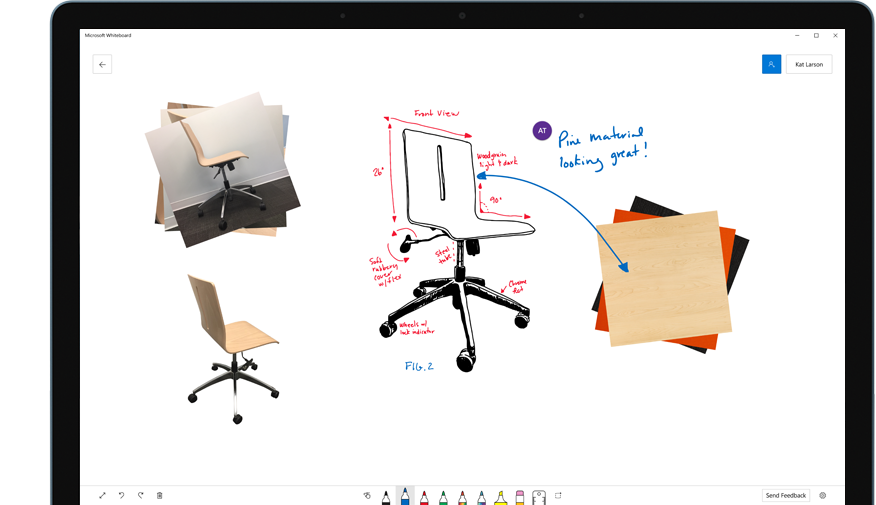
What is it? It's your own personal digital whiteboard that installs on your Windows 10 computer. Display it on a big TV screen for all to see or share with your friends and colleagues right from the app. With Whiteboard, you'll always have your notes, brainstorms and collaboration sessions at the ready. Resume a meeting where you left off or avoid worrying about someone erasing your work in a breakout room or shared conference room.
You can use your fingers, keyboard or a digital pen to write on the whiteboard. It works particularly well with pen-enabled computers such as the Lenovo X1 Yoga or Microsoft's own Surface computers.
You can also create multiple whiteboards, so that you can keep previous iterations for future reference.

Whiteboard is in preview right now and is currently exclusive to Windows 10 computers. https://products.office.com/en-us/microsoft-whiteboard/digital-whiteboard-app
-Brian Osbourn, Director, Systems & Client Solutions
Well, now, Microsoft has come up with a solution.
As an ESU student, faculty or staff member, you have access to preview a new tool called Microsoft Whiteboard.
What is it? It's your own personal digital whiteboard that installs on your Windows 10 computer. Display it on a big TV screen for all to see or share with your friends and colleagues right from the app. With Whiteboard, you'll always have your notes, brainstorms and collaboration sessions at the ready. Resume a meeting where you left off or avoid worrying about someone erasing your work in a breakout room or shared conference room.
You can use your fingers, keyboard or a digital pen to write on the whiteboard. It works particularly well with pen-enabled computers such as the Lenovo X1 Yoga or Microsoft's own Surface computers.
You can also create multiple whiteboards, so that you can keep previous iterations for future reference.

Whiteboard is in preview right now and is currently exclusive to Windows 10 computers. https://products.office.com/en-us/microsoft-whiteboard/digital-whiteboard-app
-Brian Osbourn, Director, Systems & Client Solutions
Thursday, February 8, 2018
myIT Tip of the Week
3 Quick Keyboard Shortcuts for Windows
1) When stepping away from your computer it is good practice to lock your screen. To do this press and hold down the Windows Key and press the 'L' key. This will lock your screen and require you to sign back in to unlock it. Don’t know where the Windows key is? There are two on your keyboard, you can find them two spaces from the left or right of your space bar.
2) Have you ever closed a browser tab accidentally? Press and hold Control, Shift and 'T' all at the same time. This will open up the last tab closed. Did you close more than one? Press that keyboard combination again to open up the next closed tab. This trick works in modern versions of Internet Explorer, Edge, Chrome, and Firefox.
3) Did you know you can view more than one window at a time on your monitor screen? On Windows 10 you can snap your open windows to the left, right, up, or down all on the same screen. To do this hold down the Windows Key and press the Left, Right, Up, or Down Arrows.
Keep following our blog for more tech tips and tricks. You can also visit our myIT site to find tutorials on a wide variety of topics.
Subscribe to:
Posts (Atom)