Showing posts with label Microsoft. Show all posts

Tuesday, December 8, 2020

IT After Hours: A New Generation of Xbox


A new generation has begun. It's been 7 years since the Xbox One, the last generation of Xbox, hit the market. Microsoft takes a special approach to this generation though, releasing two separate consoles right out of the gate. Let's dig into the details.

Xbox Series S

Xbox Series S

The cheaper of the two, the Series S, features a lower price point at the cost of lower specs. Priced at $299, the series S is the more budget friendly option. 

The smaller size of the Series S is appealing to a lot of gamers as well, as it easily fits into any cabinet. The slimmer, shorter, and lighter Series S weighs a mere 4.25 pounds.

As we continually move towards a fully digital future, the Series S axes the optical disc drive. Now this can be beneficial in terms of saving space and money, and digital games are widely available. However with the limited storage out of the box you will need to upgrade, and the 1TB Seagate storage expansion costs a whopping $220. Making the overall cost a lot closer to the bigger sister the Series X.

If you are planning on having multiple gaming consoles, this is definitely a great way to dip your toes into the Xbox world. 

Xbox Series X

The better performing and bigger console, the Series X, comes in at $499. It outperforms the Series S in multiple categories, so you get what you pay for.

The biggest improvement of the new generation is the load times. Review after review shows that the load times between the home screen and the game menu is exponentially quicker than the Xbox One. There's also a pretty neat feature called 'Quick Resume' that comes in handy when you want to switch between games.

Another improved feature is the noise level of the console. Though the Xbox One has been reputably loud, the fan and cooling system of the Series X is near silent. It’s difficult to judge the dust build-up's impact on the noise and fans in just a few weeks since its release, but there hasn't been any immediate causes for concern (except for the fake smoke fiasco).

Microsoft has stuck to the tried, tested and true Xbox controllers and have very slightly changed the controllers. Along with the addition of features like Smart Delivery for Games, 3D Spatial Audio, and Enhanced Backwards Compatibility for Xbox One, 360 and Original games.

Another great addition to the lineup has been the release of Microsoft Game Pass for $14.99/month. This gives you the benefits of Xbox Live Gold, along with access to 100+ games from day one, with new titles being added regularly, and EA Play tacked on.

Overall, the Xbox Series X outperforms the Series S, but at a higher up front cost. Our recommendation is to always get the latest and the greatest, if you're trying to get your order in, good luck! Here's a tracker tool that we've used in securing the console.

Tyler Parker + Saandhyarag Sasidhar
Web & Digital Strategies

Monday, June 15, 2020

Microsoft Teams - Tips + Tricks

Microsoft Teams has been an increasingly popular instant messaging service provided by Microsoft in recent times. Everyone has probably had some experiencing using Microsoft Teams, and if you haven't, it's time to hop onto the train. We're going to cover some less commonly known features of Microsoft Teams today, and hopefully you'll be able to take advantage of some of these features!

'Do Not Disturb' Mode

Have you been in a meeting recently where someone's sound notifications for Teams are popping off? Have this happened to you? Teams has a common instant messaging feature where, when you receive a new message, it plays a small 'ding' sound to notify you of it. Although this is handy most of the time, there are times when you don't want to hear this notification sound. For example, when you are in a meeting or giving a presentation. That's where 'Do Not Disturb' mode comes into play. If you open the Teams application, and select your initials in the top right corner, there is an option to change your availability. If you have a meeting scheduled on your Outlook calendar during a specific time, Teams will automatically change your status to 'Busy', but that doesn't do anything about the notification sounds. You will need to navigate there manually and select 'Do not disturb'. This guarantees that any new messages will be silent until you turn your availability back to anything else. Below is a screenshot of how exactly to change your availability within the Teams application.
Screenshot of availability selection on Microsoft Teams
Availability Selection

Status Message

About to go on your lunch break? Need to step away from your computer for 15 minutes? Have a quick errand to run? Be sure to set your status message to reflect that! This allows your colleagues, and anyone on campus trying to message you on Teams, to know you are currently away from your keyboard. Teams also gives the option of setting timers for status messages, which is useful for everyone. For example, you can set your status to 'Taking lunch' for exactly one hour, and then it will automatically reset your status message. This can clear up any frustrations of delayed messages, and it's simply best practices to let everyone know the status of your availability. Below is a screenshot of what it looks like when messaging someone with a set status message.
Set Status Message

Sending Files + OneDrive

If you use Teams on the daily, it's quite common to send files back and forth through Teams. It's very handy and quick to send files. But, the issue of files being 'lost' can raise concerns. For example, if you sent a file months ago to someone and can't remember who you sent it to, what do you do? You'll probably search through all of your Teams' contacts and attempt to recover it. We can all agree that you should have stored it in OneDrive in the first place, right? Jokes aside, Teams does this for you! When you share files using the Microsoft Teams application, it automatically stores them into a OneDrive folder under your files. Below is a screenshot of what the folder looks like under 'My Files' in OneDrive.


And then, just like with any OneDrive folder, you can sort and filter through them to help you find your 'lost' files!


App Integrations

Teams allows you to integrate existing applications into your chats. This is not only much more fun than plain text, but it allows for more interactive conversations between you and your colleagues. You can check out which applications you can integrate into your Teams client by selecting 'Apps' in the bottom left of your client. A few examples that I'll give here would be Microsoft Forms, Planner, Weather, OneNote, and SharePoint. Be sure to check them out and see if any of the available application integrations can ease your daily workflow! Below is an example of a sample question I made with Microsoft Forms in one of my existing chats.
Microsoft Forms 'Poll'


I hope that some of you are able to utilize some of these Tips + Tricks into your daily workflow using Microsoft Teams. Be sure to poke around and Teams and explore the many possibilities of its uses.


Sam Derksen
Web Developer
Web and Digital Strategies

Friday, May 1, 2020

IT After Hours II: Xbox Series X

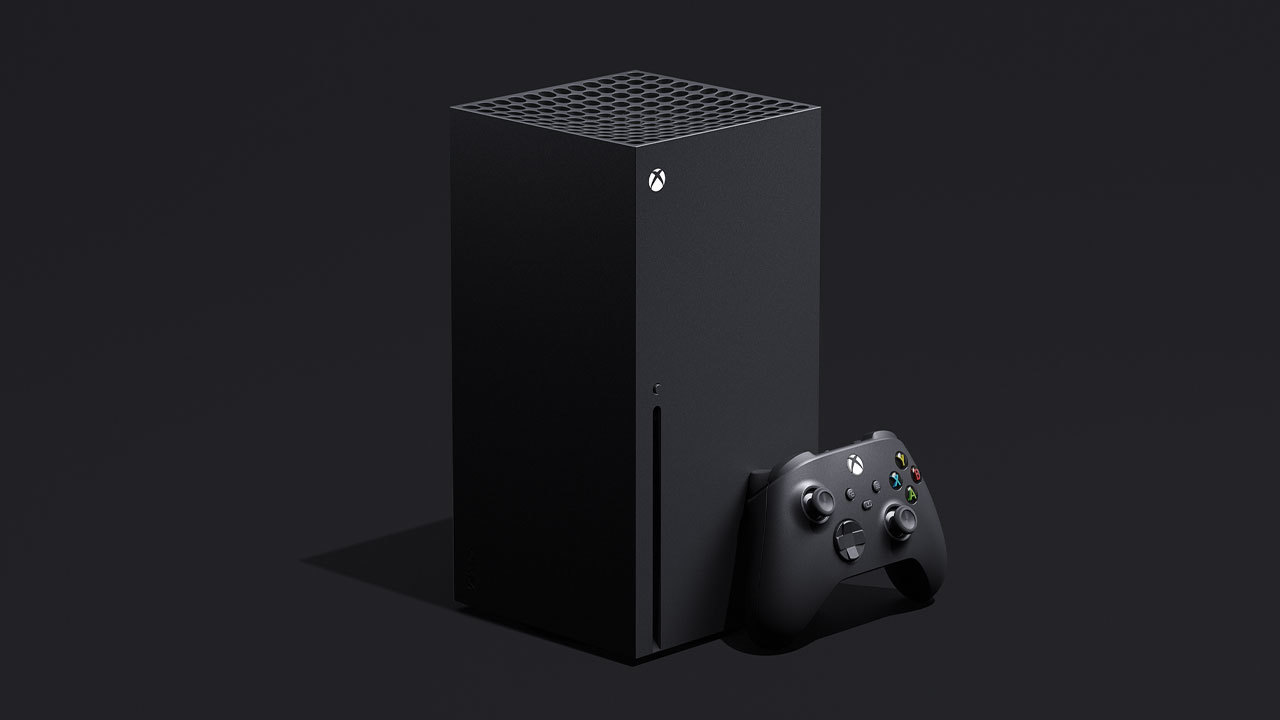
Xbox Series X Model

IT After Hours II: Xbox Series X

The next generation of console gaming is has been introduced with the Xbox Series X. Microsoft is set to showcase the console and it's game play Thursday, May 7th at 8:00 A.M. on Inside Xbox.

It's been almost 7 years since Microsoft release the Xbox One, and now they're leading off the next generation; with PlayStation announcing their next generation shortly after the Series X.

Advertised as the most powerful console ever, the Series X resembles a computer tower with a tall, vertical design. Microsoft promises minimal load times between games, and a new feature called "Quick Resume" which enables players to seamlessly switch between multiple titles and resume instantly from where they last left off. This is a huge step, as the loading times for games have increased with the size of the games.

This, combined with 4k graphics, more storage than ever, backwards compatibility, and a whisper-quiet cooling fan gives Microsoft a serious edge over it's competitors.

While Sony remains discreet with the PlayStation 5, Microsoft is set to release the Series X for Holiday 2020.

We are avid gamers here at IT, and continue to enthusiastically keep up on the latest and greatest in the gaming world.

Tyler Parker
Social Media & Marketing Student Assistant
Web & Digital Strategies

Thursday, April 9, 2020

Keeping Up With Microsoft Planner

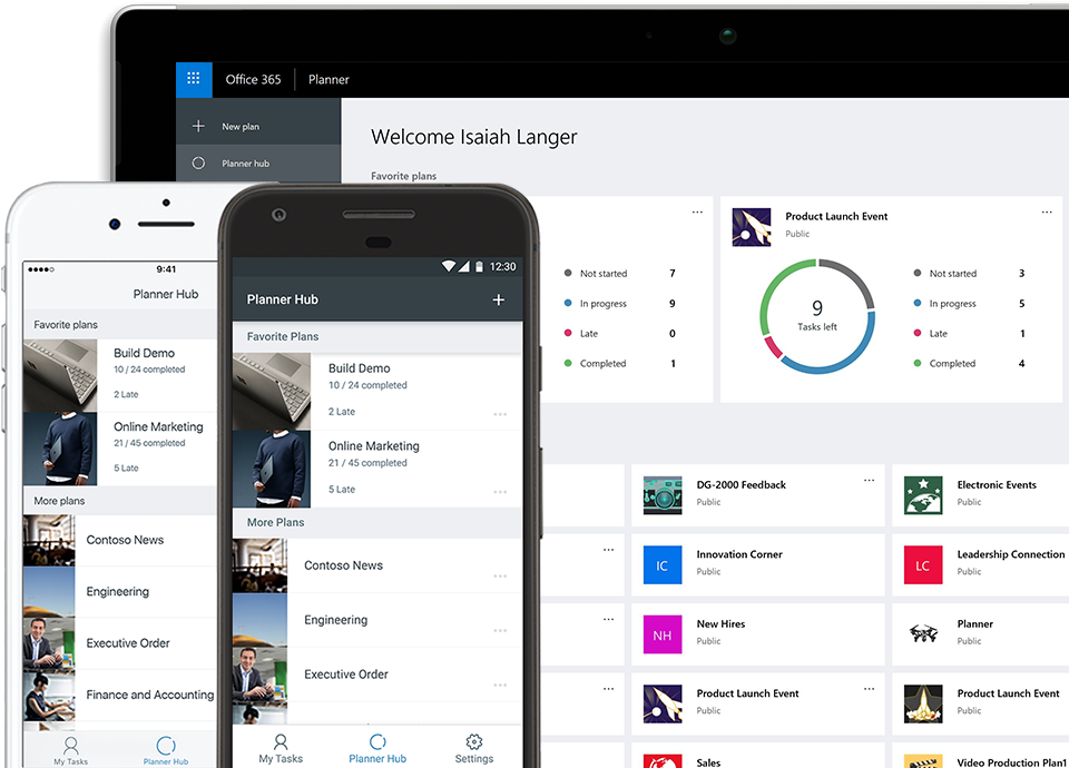
Planner App on DevicesWe've received feedback that many users would like a task management tool to help stay organized and on track. While there are many solutions available, Emporia State offers a free tool to our faculty and staff called Microsoft Planner. Microsoft Planner is an excellent task management tool that allows you to assign users, set deadline dates, statuses of the task, and all of this with email notifications. Even if someone happens to forget about the task, an email will be sent before the deadline reminding the users that there is an upcoming task!

To make the best use of Planner, you should have a SharePoint Group created. Follow this link to have a SharePoint Group created for your team. Once you have a SharePoint Group, a Plan will be populated in your Plans tab. Plans feature options such as exporting it to an excel spreadsheet, or even a 'Chart' which helps you understand a deeper, analytical prospective of how your plan is performing. Once you have a plan created, start populating it with your current tasks. You can create different 'buckets' which help you differentiate the tasks and their topic. The user-interface makes it very easy to set your due dates and assign people to the tasks. Once your task has been created, Microsoft Planner features multiple sections to help you and your team complete it. There is a section for notes, checklist items, and even attachments. All of these features can help your team know exactly what the task is and where you are in terms of completing it!

Also, because Microsoft Planner is part of Office 365, you can access it from any device through your browser. Microsoft Planner also gives you the option to sync your tasks to your Outlook calendar if you'd like your tasks to appear there as well. The options are limitless for Planner, follow this link to check it out for yourself!

Sam Derksen
Web Developer
Web and Digital Strategies


Monday, March 23, 2020

Microsoft Teams vs. Zoom - Which Should You Use?

Teams vs. Zoom

As we move our classes online, you may wonder, "What is the difference between Teams and Zoom?"

ESU offers a plethora of resources for conferencing and communications, and today we'll be comparing two: Microsoft Teams and Zoom. Both software are great when it comes to online collaboration, but they both have their strengths and weaknesses.

Both Microsoft Teams and Zoom offer individual and group communication through messaging and video conferencing. This can come in handy when working on group projects, online instruction, presentations, or traditional face-to-face meetings.  So the question is, when does one work better than the other?


Microsoft Teams:

  • Quick Messaging
  • File Sharing
  • Push-Notification Instant Messaging
  • Text-Based Group chats

Zoom:

  • Massive Video-Calling
  • Online Classroom
  • Phone Dial-In Service
  • Screen Casting
  • Screen Recording

Both services offer a mobile app as well, which works best with iPhones.

Looking to download Zoom? Click here.
Looking to download Microsoft Teams? Click here.

For more information, watch episode 12 of IT Only Takes a Minute where we discuss these further in depth.


Questions? Contact the IT Help Desk and we'll be happy to help you out!
Call: 877-341-5555
Email: helpdesk@emporia.edu


Tyler Parker
Social Media & Marketing Student Assistant
Web & Digital Strategies

Sunday, November 24, 2019

Microsoft Excel Tips & Tricks

Microsoft Office: Excel is an extensive program that can be incredibly helpful when working with tables, spreadsheets, and graphs. It can be a difficult program to learn, as its' functions and capabilities are so vast that new users can quickly become overwhelmed. Here are a few tips and tricks we use in the IT department that can hopefully make life easier for you.

Input The Same Data Into Multiple Cells

If you ever need to input the same thing into more cells than one, there's a simple solution to do it all at once; that way you don't waste time retyping the same thing over and over.

Hold Ctrl while you click on all the desired cells and then type your information into the last selected cell.

After typing your information, hit Ctrl+Enter to automatically place the same information into all selected cells.


Wrap Your Text To Fit The Cell

Have you ever tried to type something in Excel, and for some reason it wants to extend past the cell? There's a simple fix to that as well: Wrapping your text.

Click the cell you wish to use, and type your information into it as normal.

After that's done, click Wrap Text at the top of your screen to fit your text into the cell. (Hint: You may have to adjust the size of the cell to fit lengthy words by dragging the edge to the right.)


Autofill Your Cells

Sometimes you'll find yourself inputting repetitive data such as names, dates, or other numerical information. Excel can detect patterns and fill in the rest of your column, granted the pattern is correct.

After typing in 2-3 cells of your column, Excel should be able to take it from there. Move your cursor over the bottom right corner of the selected cell and it should turn into a black "+"

Click and drag down the desired amount of cells, and Excel will autofill the rest of the cells with data that fits the pattern detected.


Keyboard Shortcuts

Similar to our Microsoft Word blog post, Microsoft Excel has a plethora of keyboard shortcuts that can save you time and effort when using the program. Here's a few that we find useful in our day-to-day excel tasks.


Tyler Parker
Social Media & Marketing Student Assistant
Web & Digital Strategies

Tuesday, November 19, 2019

Microsoft Office Keyboard Shortcuts

Microsoft Word - Tips and Tricks

Microsoft Office is a great tool for typing your papers, resume, or even just taking notes. At the surface, the program can seem simple to use; but there are a lot of hidden features you might not know about.

Here's a quick tip: Be sure to save all your precious files on your ESU OneDrive, to have convenient access to your files from any device.

These are the most convenient keyboard shortcuts that can save you valuable time.

Document Shortcuts
  • Ctrl+N: Create a new document
  • Ctrl+O: Open an existing document
  • Ctrl+S: Save the document
  • Ctrl+W: Close the document
Action Shortcuts
  • Ctrl+Z: Undo previous action
  • Ctrl+Y: Redo previous action
  • Ctrl+C: Copy text/graphic to clipboard
  • Ctrl+V: Paste text/graphic from clipboard
Movement Shortcuts
  • Ctrl+Left/Right Arrow: Move one word to the left/right
  • Ctrl+Up/Down Arrow: Move up or down one paragraph
  • End: Move to the end of the current line
  • Ctrl+End: Move to the end of the document
  • Home: Move to the beginning of the current line
  • Ctrl+Home: Move to the beginning of the document
Formatting Shortcuts
  • Ctrl+B: Bold formatting
  • Ctrl+I: Italic formatting
  • Ctrl+U: Underline formatting
  • Ctrl+Shift+D: Double underline formatting
  • Ctrl+Shift+W: Underline formatting to words only (No spaces)
  • Ctrl+[ or ]: Increase/decrease font size
View Shortcuts
  • Ctrl+Alt+S: Add/Remove split window view
  • Ctrl+Alt+O: Outline view
  • Ctrl+Alt+V: Print layout view
  • Ctrl+Alt+N: Draft view
  • Ctrl+F2: Print preview view
These shortcuts can be incredibly helpful when typing up those last-minute papers that you forgot about. We all know how valuable every minute is when that 11:59 pm due date is coming up fast. Hopefully this article can save you from wasting your time, and maybe even save your grade.


Tyler Parker
Social Media & Marketing Student Assistant
Web & Digital Strategies

Sunday, October 27, 2019

Microsoft Surface Pro X

Microsoft is at it again with the announcement of the new Surface Pro X. This 2-in-1 laptop also acts as a tablet and offers a slim, sleek design, next-gen graphics, and plenty of storage. Aiming to be the perfect laptop for business, this model succeeds. Whether it's used in the conference room or the classroom, let's take a look at how the Surface Pro X can benefit you.

Display
The Surface Pro X offers a 13" touchscreen display, allowing you to see and do more an a near edge-to-edge screen. The screen automatically adjusts the brightness based on your environment's lighting.

Design
Microsoft's thinnest 2-in-1 laptop measures in at an astonishing 7.3 mm so it stays out of your way and fits right into your backpack with no unnecessary bulk. The laptop is offered in a matte black design, complimenting the anodized aluminum casing. Microsoft also provides a carbon composite, fan-less thermal cooling system to make sure the device doesn't overheat.

Capabilities
Microsoft offers a removable SSD which comes in 128, 256, or 512GB options. The battery life offers 13 hours of typical device usage, so you don't need to worry about taking your charger to class. Campus WiFi not working? No problem. The Surface Pro X includes LTE Advanced Pro 4 so you can use cellular data to finish those last-minute projects.

This laptop is perfect for students for it's convenience, capabilities, and innovation. Made up your mind? The Surface Pro X retails for $999 and is available at Best Buy or Amazon.com and Microsoft.com. But don't worry, Microsoft offers a student discount of 10% on Windows devices so you're not breaking the bank.

Tyler Parker
Social Media & Marketing Student Assistant
Web & Digital Strategies

Friday, May 3, 2019

3 Awesome Features of SharePoint Drive


The word has quickly spread around campus: The W: Drive is going away. However, it's replacement is shaping up to be superior in a number of ways. SharePoint Drive will be taking it's place. With the final stages of the migration on the horizon, let's highlight three of the improvements that ESU will see with the new technology.

SharePoint Drive Logo


Updating Permissions is Self-Service

That's right; there's no more forms, and no more waiting on IT. The owner of a SharePoint Drive can now grant other people access right from the settings menu. So rather than filling out an InfoPath form, putting in a HelpDesk ticket, and waiting to hear back, a Data Access Coordinator(the owner of the SharePoint Drive) can now grant someone access with a few clicks via the settings menu in their Drive folder.
 

Access from Anywhere is Easier than Ever


Getting to the W: Drive from off-campus was a bit of a process. It was even more of a process if you had to access it from your mobile device. With SharePoint Drive, you can access your files from any browser on any device with an internet connection. There's also SharePoint and OneDrive apps that are super useful on mobile devices.
 

Users Can Now Recover Previous Versions of Files


With point-in-time recovery, users can now view previous versions of documents. Using this tool, it's easy to open a document, see who has made changes, when the changes were made, and even roll the document back if necessary.

Keep in mind, these are just a few of the benefits that users will see with the transition. For more information, go to hornet.emporia.edu.


Tyler Gastineau
Digital Experience Coordinator
Information Technology
Emporia State University
Office: (620) 341-6709

Friday, March 8, 2019

Office 365: Planner


A great service that Office 365 offers to Emporia State's employees is Planner. Planner is a service that allows you, and others, to stay organized on projects. You can have projects for yourself and also projects with a group of people. Planner allows you to sync your projects to your Outlook calendar so you are always aware of your progress and the project’s deadline. Planner will also give you detailed statistics on how your projects have been going, how many you have completed, and how many you have not started. This application is a great way to stay on top of your ongoing projects and is offered to you through Hornet 365.


Sam Derksen
Web Developer
Web and Digital Strategies

Thursday, December 6, 2018

The End of Microsoft Edge

News that Microsoft Edge's discontinuation is becoming apparent and the replacement will be a Chromium-based web browser. Today Microsoft CVP Joe Belfiore solidified these rumors by concluding this move will add "better web compatibility" and "less fragmentation" throughout the web.

This change to a Chromium base will ideally run and function better on Windows 10. For developer, this means they will have less cross-browser compatibility to worry about when building websites. Edge will advance faster with this change.

World wide implementation of the Chromium-based Edge web browser will appear sometime in 2019.

Donald Goode
Student Web Developer
Web & Digital Strategies

Saturday, October 13, 2018

Microsoft Ignite 2018 - My Review!

New Enclosure for Surface at Microsoft Ignite
New enclosure for Surface Go
In September, Tyler Gastineau, Doug Polston and I attended Microsoft Ignite, Microsoft's annual technology conference in Orlando, FL.  During the event, we learned about a lot of new things coming from Microsoft including updates to everything from Windows to Office and impacting services like SkyLab and Hornet 365.

We all attended different sessions and demos throughout the week.  Here are my top takeaways:


  • The OneDrive for Mac client is getting an update to bring it more on par with the Windows version!  The best new feature--files on demand.  This means you don't have to sync all your files down to your Mac.  OneDrive will intelligently sync only those you're using to avoid filling out your hard drive!
  • There are a lot of new SharePoint features coming that will greatly enhance our intranet capabilities with Hornet 365.
  • One of the new features is News, which syndicates user-personalized news feeds across all of SharePoint.
  • Teams is now feature equivalent to Skype for Business, plus lots of new integrations are being added making Teams the hub for your collaboration and communication needs.
  • Office 2019 was released the day of the conference, but ESU will not be using Office 2019.  We will be moving to the newly branded version called Office 365--it's the same desktop software we're used to using at home and, unlike our current version, it'll be patched and have features added automatically!
  • There's an all-new version of Microsoft Project Online coming!  Unlike the current version, it looks more modern and is expected to be available April 2019!
Brian Osbourn
Director, Web & Digital Strategies


Walking on an interactive video board at Ignite!

Thursday, October 4, 2018

Microsoft Surface Event


Microsoft recently announced updates to three Surface devices, and I will give you a simple rundown of the changes.

  • Surface Pro 6
    • CPU Upgrade to 8th Generation
    • Black Versions Now Available
  • Surface Laptop 2
    • CPU Upgrade to 8th Generation
    • Upgraded Contrast Ratio
    • Improved Keyboard For Quieter Typing
    • Black Versions Now Available
  • Surface Studio 2
    • Massive GPU Upgrade to Nvidia GTX 1070
    • Additional USB-C Port
    • Upgraded Screen
  • Surface Headphones
    • Full Charge Within 2 Hours
    • Up to 15 Hours Of Bluetooth Listening
    • USB-C and 3.5 mm Inputs For Wired Listening

Microsoft also released a new payment program, Surface All Access, so anyone can afford these new devices over time.

Sam Derksen
Student Web Developer
Web and Digital Strategies

Friday, September 7, 2018

Need a To-Do App?

Microsoft has a noteworthy application called "To-Do." There is no easier way to create a to-do list now with Microsoft. Not only can you create to-dos, but also set a time, a reminder, and even steps to remind you how to complete a task. Also, you can set due dates for your tasks and categorize them. For example, you created a "work out" category, you can add to that category "Go to gym" at 6:00 and "Protein shake" at 7:30, etc. The application has many more features that might help organize your tasks.

So, why load your head with to-dos when you have Microsoft To-Do? Check it out.

You can download here for:

Sunday, August 26, 2018

Reserve a Study Room in Richel Learning Space!

Emporia State's IT department just launched a new service in Richel Learning Space (Cremer Hall 193) to make your experience just a little more convenient. Powered by iPads and Office 365's Bookings, you can reserve study rooms in Richel Learning Space in just a few seconds! If you need a space to study with your group, stop by ahead of time or reserve available rooms when you arrive. This software will also send you a reminder e-mail so you won't forget when you reserved your room. Some study rooms are equipped with a Hornet 365-powered computer, TV and a whiteboard, so don't miss out on these exciting new features!

Sam Derksen
Student Web Developer
Web and Digital Strategies

Tuesday, August 7, 2018

myIT Tip of the Week


myIT Tip of the Week


With summer quickly coming to an end, and classes resuming very soon, we wanted to take a moment to talk about some of the services we have to offer.


o   Employees as well as current students have access to download Microsoft Office 2016

o   Free anti-virus software is also available to students and employees for their personal devices

o   Beginning August 20, the Help Desk will be open until 9:00 pm Sunday through Thursday, and Saturdays 11:00 am to 3:00 pm.  Fridays we are open 8:00 am – 5:00 pm.

o   We are available by phone, email, and live chat

o   Students and staff get 1TB of cloud storage with OneDrive

o   Free WiFi is available all over campus, including many outdoor spaces like Welch Stadium and Trusler Sports Complex.

o   Employee training opportunities will be available this fall on various topics


We hope you’ve had a great summer and look forward to seeing you at the Help Desk this fall.