Showing posts with label Employees. Show all posts

Wednesday, April 29, 2020

What’s the Difference Between Kaltura, Panopto and Zoom?


Emporia State has licensed three video products from many years, starting with Panopto in 2008, followed by Kaltura in 2014 and Zoom in 2016. Each product is intended for very particular verticals but are now beginning to expand their portfolio to include features that overlap with one another. Video is extraordinarily popular at ESU. In any given month several terabytes of video are captured and replayed. Canvas is not well suited to support that much video content, so we direct users to one of these other solutions.

Panopto (Ancient Greek for All Seeing) was originally developed at Carnegie Mellon University as a lecture-capture product used in medical schools. It is the workhorse for recording and uploading didactic presentations that are replayed later for review and study – mostly PowerPoint and web sites with a video insert. Panopto is unique in that it is one of the few products in its class that supports two cameras. ESU first adopted Panopto to be used in the Earl Center for recording counseling sessions. Later, it was rolled out across campus into every Learning Space and every office. Faculty can even record at home. Like all our products, Panopto is mobile friendly and provides automatic closed captioning. Panopto can also be used for live broadcasting events. It is not a product that is intended for synchronous web-conferencing.

Kaltura is the granddaddy of video hosting and streaming. It is used by many major corporations and universities, including the University of Washington, KU, and Indiana University. Think of Kaltura as a YouTube for the university but used primarily used for academics. ESU adopted Kaltura because Panopto did not afford video upload from non-Panopto sources at the time we conducted a review. (That since has changed.) Kaltura’s vertical is serving video content through Canvas and through a public facing portal called Kaltura Media Space. It also includes a desktop capture utility called Kaltura Capture that offers native screen recording. Kaltura also supports some of our best accessibility features using an add-in called Reach that not only captions, but also provides an automatic transcript of the video dialog that can be downloaded and printed. Kaltura is attempting to broaden its portfolio into lecture capture and web-conferencing. Kaltura Mobile allows faculty to capture and upload video from  their smartphones directly onto Canvas.

Zoom is the latest entrant to our portfolio. Zoom replaced Adobe Connect a few years ago when we saw Flash being deprecated by the browser vendors. This product’s primary vertical is web-conferencing, although it is commonly used for all manner of lecture capture given its ease of use. Our license for Zoom is underwritten by KanREN – our campus Internet provider. Zoom recordings are stored on Zoom Cloud for 60 days, and simultaneously stored on Kaltura using a product integration. Zoom is perhaps one of our more popular products given its ‘frictionless’ product interface. In a typical month we will see upward of 600 Zoom meetings. Zoom can even be used for desktop capture recordings. It is perhaps the most versatile of the products we license, but the storage limitations provide challenges.


Rob Gibson
Director
Learning Technologies

Friday, April 10, 2020

Asking Questions/Finding Answers

Asking Questions/Finding Answers

Are you seeking help?
Can’t meet up with anyone to resolve your issue?
Is your professor or manager not providing you with enough information to succeed?
Fret not Hornets! Where there's a will, there's always a way! We're going to help you find the solutions and online platforms, where you can find all the answers to your important questions.

Schoolwork:

  • Many courses have discussion boards on Canvas! This is available for you to ask and answer course related material. If you don’t understand something, ask for help.
     
  • Schedule a Zoom meeting with your classmates! Zoom is probably your best option, because you can share your screen and showcase what you are trying to figure out. Zoom also has the functionality for remote control access. This allows the person who is trying to help, control your machine until the issue is resolved.
     
  • If you're still having trouble understanding the material, don’t forget that you can email / virtually meet with your professor on Zoom, to clarify your questions and get a better understanding on the material. Professors are here to help you succeed!
  • You can always check the ESU Learn Anywhere site for campus resources or reach out to us and we'll help direct you to the person who can answer your question.

Job tasks:

  • The best option when it comes to finding a solution to your work related question, is to communicate with your team on the established communication channels.  Is that email?  Teams? SharePoint? Perhaps now is the ideal time to establish that channel!
     
  • Schedule a meeting with a manager or coworker(s). This will give you an opportunity to ask all your questions and get the answers. Make a list of questions before the meeting so you don't miss anything.
     
  • If no one is available--that's not a problem! You have the greatest invention known to us, GOOGLE.  Ask Google any question you have, and you are most likely to get an answer. Use it with caution!

It's important to realize that these are unprecedented times for all of us! So, don’t be scared to ask for help!


Anton Levanovich
Student Web Developer
Web & Digital Strategies

Friday, March 27, 2020

Work Anywhere - Employee Guide

Power to Work Anywhere


Are you ready to work from home? We sure hope so. If not, we look to prep you with everything you'll need to know about the near future of ESU classes.

As an ESU employee, there are a number of things that you need to take in to account to become a secure and productive remote worker.

Let's begin with the basics.
You're going to need a computer or compatible device - If you already have an ESU laptop with Windows or MacOS, then you're set.
If you have an iPad, you should be able to do most tasks as well. (But if you mostly work with Microsoft Office, you're going to want a keyboard.)

If you don't have an ESU laptop and you're familiar with cloud services - You can use your home computer.
However, if you're using secure services that need a VPN, (Banner Admin pages, Jabber, and the W: drive,) you'll need to use an ESU laptop.

If you need to check out an ESU laptop, visit the Teach and Work Anywhere site on emporia.edu/covid19 and fill out the form under "Recommended Equipment."

Next,
You'll need communicate with your colleagues or students - Starting with your ESU office phone.
Unfortunately, you won't be able to forward it to your home phone or cell phone due to technical limitations.

This leaves you with two alternatives:

  1. Change your voicemail - Inform callers that you will return their call via phone or email. Instructions and more information located on the Work Anywhere site.
  2. Jabber Software Client - This is for lines with a larger call volume, (Admissions, Registration, or any department's main line.) Using the Jabber software client installed on your laptop, you'll be able to make and receive calls using the speaker and microphone on your computer. (Note: you must be connected to the ESU VPN.)

ESU offers two types of applications and services: 

  1. Cloud based - You can use it anywhere on any device (Office 365, Teams, Canvas, Microsoft Teams and Zoom.)
  2. Secure (Requires VPN connection to use.) - A VPN consists of software that runs on your computer and connects back to the ESU network, providing a secure tunnel. Essentially, you're on the ESU network from home. (Banner Admin pages, Jabber, and the W: drive.)

An alternative to using the VPN is ESU's online virtual computer lab, SkyLab, ESU's virtual computer lab

Have you moved to SharePoint Drive or your personal OneDrive? - You can access those from anywhere.
If you still have files on the W: or X: drives, you will need VPN or SkyLab to access those files.

Web Conferencing Software


There are 2 Options for Employees

  1. Zoom - ESU's primary platform for hosting a video conference. Instructors can use it to have virtual classes and departments can use it to host meetings. (All employees have access to Zoom via Hornet 365)
  2. Microsoft Teams - ESU's primary platform for instant messaging. You can access it from anywhere and on any device. Virtual meetings can be hosted on Teams as well. (All employees have access to Microsoft Teams via Hornet 365)

Now that you're informed on ESU's online capabilities, you have the ability to work from anywhere.

For more information, visit our Teach + Work Anywhere website.

Tyler Parker
Social Media & Marketing Student Assistant

Web & Digital Strategies

Tuesday, December 3, 2019

Protect The Nest: Cyber Security Ambassadors


ESU IT needs your help promoting safe practices on the web!

We are launching a new program called Cyber Security Ambassadors. ESU students and employees will have the opportunity to gain valuable experiences and knowledge of cyber security threats, and how they can help protect their department.

Did You Know? A study at the University of Maryland concluded that on average, there are hacker attacks on computers with Internet access every 39 seconds - affecting one in three Americans every year.

Cyber Security Ambassadors will learn cyber-safe practices, tips and techniques that relate directly to their field of study. They will be empowered to take lessons learned and share their knowledge with others to promote safe IT practices at ESU and abroad.

Ambassadors will receive a FREE T-shirt, ESU koozie, cup and will be eligible for more swag throughout their participation. Ambassadors that complete presentations and participate actively in the program will also be eligible to receive a letter of participation detailing areas of technical competency signed by the Information Security Officer.

Program orientation and welcome session will begin shortly after Spring Semester begins. At the orientation Ambassadors will be given an overview of the program and ways they can engage with their fellow classmates and other peers. During this time members of the Information Security office will take suggestions and comments about topics that the Ambassadors would like further information on.

Interested in becoming a Cyber Security Ambassador?
Click here to fill out the application and PROTECT THE NEST.

Email ITSecurity@emporia.edu with any questions or concerns you might have.


Tyler Parker
Social Media & Marketing Student Assistant
Web & Digital Strategies

Friday, March 8, 2019

Office 365: Planner


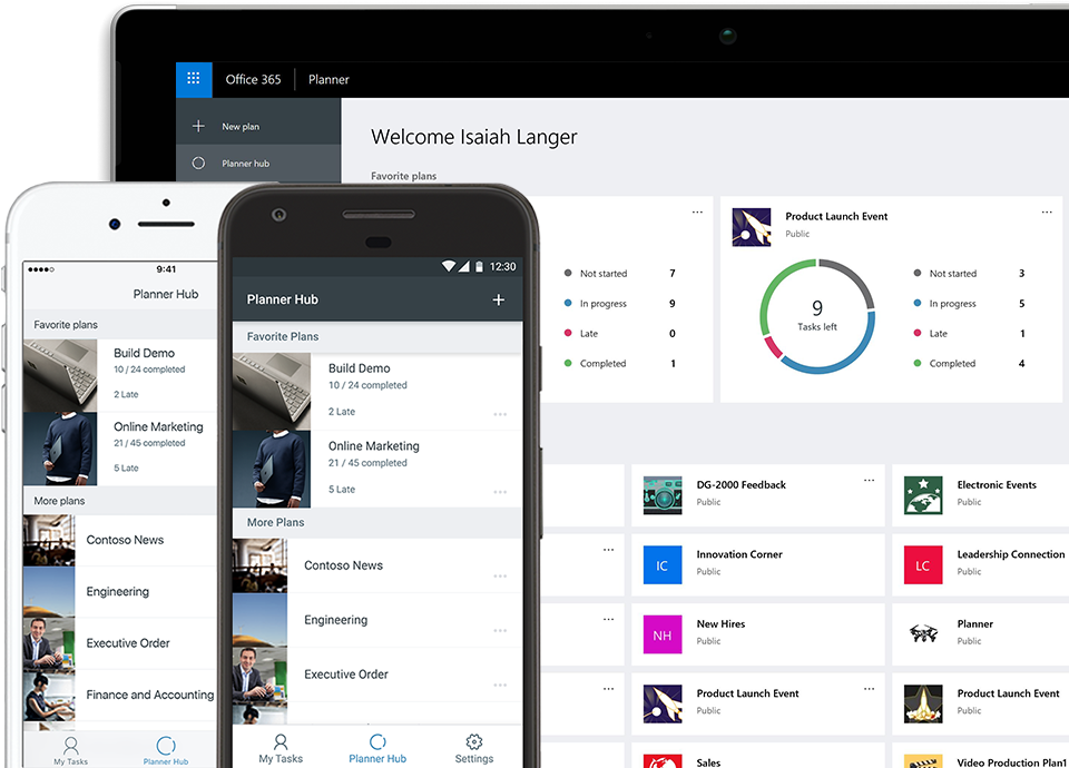
A great service that Office 365 offers to Emporia State's employees is Planner. Planner is a service that allows you, and others, to stay organized on projects. You can have projects for yourself and also projects with a group of people. Planner allows you to sync your projects to your Outlook calendar so you are always aware of your progress and the project’s deadline. Planner will also give you detailed statistics on how your projects have been going, how many you have completed, and how many you have not started. This application is a great way to stay on top of your ongoing projects and is offered to you through Hornet 365.


Sam Derksen
Web Developer
Web and Digital Strategies