Showing posts with label Email. Show all posts

Wednesday, June 10, 2020

How to Track Down Missing Emails?

As communication technology has evolved over the years, email has rapidly grown in popularity and is now undoubtedly one of the most widely used methods of online communication. Although most people have a general understanding of how email services work and can perform the basics such as sending, forwarding, and replying with relative ease, there are still many features of email services that cause confusion. Today we will delve into some of these features, explaining how some of the different types of mailboxes work and where to look when you’re expecting an email but haven't received it.

Inbox

This is the main mailbox where all of your emails that haven’t been flagged as spam or junk end up. This mailbox primarily contains all of your important emails and should be the first place to look when checking your email. Unfortunately, some legitimate emails are accidentally marked as spam or junk by accident so they may not always end up in your inbox.

Junk/Spam

The junk mail folder or spam folder is used to store unwanted emails, preventing them from making it to the user’s main inbox. This helps decrease the volume of emails that a user has to look through, since some users may receive hundreds of emails on a daily basis with only a handful being legitimate. As previously mentioned, the systems used to detect junk mail are not always perfect so some legitimate emails may be marked as spam and on the other hand, some unwanted emails can slip through the cracks and enter your main inbox. Because of this, it is important to check your junk or spam folders on a regular basis, especially when you are expecting an email but can not find it in your inbox.

Clutter

Clutter is an email sorting system used by Microsoft Outlook. The main purpose of clutter is to distinguish between high and low priority emails so you can better identify important messages and reply to them sooner. Clutter uses an artificial intelligence system that analyzes your habits and behavior when using Outlook to get a better understanding of the types of emails you like to see and the ones you tend to ignore.

Unfortunately, the clutter feature has been discontinued by Outlook although some users may still have this feature. If you do have this feature, clutter is another place to check on a regular basis since important emails can also end up here by accident.

To enable the clutter folder within Outlook check "Separate items identified as clutter" and click “Save”.

Antispam

Antispam is a service similar to junk/spam and can be seen as another layer of defense, filtering out unwanted emails. Also similar to junk/spam, antispam is not always perfect and can filter out important emails by accident stopping them from reaching your main inbox. Because of this, it is very important to check your antispam on a regular basis to make sure you’re not missing any legitimate emails.

To access antispam head to antispam.emporia.edu and login with your ESU username and password.


Taylor Nelson
Student Media Producer
Web and Digital Strategies


Tuesday, June 9, 2020

Why Is Email Important?

Outlook iconAlthough many of us enjoyed the interaction between each other in the office, there has never been a better opportunity to utilize technologies like email. Email isn't new by any means, but utilizing it as a primary communication source might be for some people. It's also worth noting that email is the primary official means of communication for Emporia State University. In a world where no physical meetings are taking place, email usage has increased, and rightly so!

There are many benefits to emailing people for communication methods, especially if you're using Outlook for Office 365. Your emails between colleagues are documented and are readily available by a quick search for a word, person, or subject. This potentially eliminates any miscommunication issues that you could be having with colleagues. Because of this feature, it's important to remember to write well thought out emails. Be concise with what you are trying to convey and the digital workforce will be thankful! Another benefit is simply keeping everyone in the loop. Being able to CC your colleagues/boss into your emails gives them a way to keep track of what's going on with certain projects/tasks. One could also argue that email is more secure than the word of mouth communication method. Outlook for Office 365 allows you to 'Encrypt' an email with various options depending on the confidentiality of the email's content. Be sure to learn more about the 'Encrypt' feature by following this link.

Hopefully this blog provides some insight to why email has become so important in our everyday workflows. Although this blog post is generally targeted at faculty and staff, it also applies to students with their student Gmail accounts. Stay on top of your inbox and your colleagues will take notice!

Sam Derksen
Web Developer
Web and Digital Strategies

Friday, June 5, 2020

Outlook: Focused Inbox vs. Normal Inbox

Microsoft Outlook app updates on Android phones and tablets with ...

Do you like having your inbox organized, clean, and know exactly where to find them?

Using your Outlook email is something that is an everyday task for employees and faculty of our university. Gmail and Outlook are both of the email providers that Emporia State uses, but the difference between the two stands out with Outlook.

Outlook has a bit different view when you get to your home screen on your email. Outlook offers different locations for your emails to go without having to leave your Inbox tab. While some users have "Clutter" as a folder choice instead of the normal options being "Focused" and "Other". Focused and Other are the two tabs that are going to be within your inbox tab when using Microsoft365, Exchange, and Outlook.com. The Focused tab is where your more important emails will be located, giving you fast access to your everyday interactions. The Other tab is where you can place your less necessary emails like subscriptions, shopping ads, donation banks, etc. This gives the user a more clean and organized user face for them to utilize. Leaving all of your emails organized but still keeping all of them easily accessible.

When using Outlook on a Windows device, you will need to select that you want your Focused inbox visible. From there you will be able to go through your emails and either move them to the Focused inbox or the Other inbox. 

Using Outlook.com on a device, you will need to go to settings and turn on the "Focused Inbox". This will refresh and you will be able to organize your emails into which category you want them to be in.

If you are using Outlook, Microsoft365, or Exchange, there are step-by-step instructions on how to get your email inbox looking clean and organized while still being user friendly found here.

Questions and concerns can also be answered by contacting the IT Help Desk.
Stay healthy Hornets!

Dakota Taylor
Social Media Student Assistant
Web & Digital Strategies

Friday, April 17, 2020

Email Encryption - New Service at ESU


Check Mark Icon
This week, we announced the availability of email encryption from Outlook for ESU employees.    Our Information Security team has developed the following "how-to" guide with frequently asked questions to help users get started.

·       When would I use the encryption option?
o   If you send and receive information that's considered PII, Non-directory FERPA, HIPAA, Intellectual Property or any personally important information, you should use encryption.

·       Why would I use the encryption option?
o   Encryption scrambles the information in your message so that it can only be read by a recipient with the correct key. Encryption ensures that your information remains safe and confidential while it's passing through the internet. 

·       What do I have to do to use encryption?
o   It’s already available natively for some Outlook 2016 users (If you see a “permission” button where the “encryption” button should be then you need to upgrade your Office suite to enjoy seamless interaction with encrypted mail. All Outlook 2019 desktop and webmail users are able to use encryption without any additional setup.
o   If you have tried sending encrypted mail with Outlook in the past you may recall how tedious the process was to setup certificates and how often the mail recipient could not open the mail you sent them. The new encryption process is much, much easier to use and, most importantly, can be used to communicate with people using Gmail, Yahoo or virtually any other email client. 

·       What are these options I see under the encryption button? 
o   There are 4 types of email classification options available to Outlook desktop users and 2 available to Outlook web users. Desktop only options are noted with an *:
§  Encrypt-Only – This is the recommended setting for sending encrypted mail. We recommend this setting over the others because it is compatible with nearly every email recipient (Gmail, Yahoo, AOL….lets just say we haven’t found an email provider that it doesn’t work with yet)
§  Do Not Forward – This option gives you a little more control over the content you email. Using this option the recipient will not be able to forward the email message to another account or individual. This would be best used when sending sensitive information that only the recipient and the recipient alone should have access to.
§  Emporia.edu – confidential* – This option, along with the next one are not recommended for use unless you’re given specific guidance to do so. No, it won’t cause harm to use this or the next setting, but it will prevent any recipient outside of the organization from viewing your email.
§  Emporia.edu – confidential View Only* – As with above, this setting is really meant for highly confidential communication within the ESU organization. If you haven’t been given instructions to use this option then you don’t need to.

·       What types of attachments can I send?
o   Attachments are fully supported for all Office file types, PDF and several image file types.

·       I need to send email to multiple recipients; can I do that?
o   Encrypted mail can be sent to multiple recipients using the “Encrypt-Only” and “Do Not Forward” options.

·       I am ready to send encrypted mail; how does my recipient open the mail?
o   If the recipient is using another email client, such as Gmail or Yahoo, they'll see a link that lets them either sign in to read the email message or request a one-time passcode to view the message in a web browser. The message will be read and replied to in an Outlook web interface.

Knowledge Base Links:
·       How do I open a protected message?
·       View encrypted messages on your Android device
·       View protected messages on your iPhone or iPad
·       Encrypt email messages
Applies to: Outlook for Office 365, Outlook 2019, Outlook 2016, Outlook 2013, Outlook 2010, & Outlook 2007
·       File types supported by the Azure Information Protection client (Encrypted Mail)

Tuesday, April 7, 2020

Printing Alternatives When Working or Learning Remotely

Students may be missing one common function that was always at the ready--printing.  Now that we are all working and learning remotely, there are a few things that can bring up moments of worry including 1) Not being able to submit the assignment in the preferred format, 2) not being able to collaborate or proof a hardcopy of a document or 3) the document vanishing from digital existence on your computer before you can print a backup copy. (that never happens!)

Here are a few tips that you can do as printing alternatives when you may not be able to have a physical copy. With ESU already providing Google services to students as well as Office 365 for all ESU students and employees to download, there are multiple options available.

The Universality of the PDF

Documents can be sent as PDF files--PDF standing for portable document format. So just as it says, the document can be on different platforms while staying the same for each user receiving the document. To save as a PDF in Google Docs, you would go to File>Download>Download as PDF.  In other applications, you can simply choose to print the document as you would to a physical printer, but instead of choosing your printer you should have an option for "Print to PDF" or something similar.  In MacOS, there is a "PDF" button on the print dialogue.

Google

PDF's are also very good when it comes to storing the documents, especially for archival purposes. ESU students can store your documents in Google Drive, which means you won't have to worry if your documents are safe and secure.  Google Drive is available from Windows, Mac, web browsers and mobile devices, giving you quick access wherever and whenever you need it.  The ability to share from Google Drive also means you don't have to print out and distribute copies of documents--the most current version is always available to you and those you are collaborating with.


Google has an online saving that makes your documents easy to keep track of. Google Drive saves your work as you continue to make progress on it, guaranteeing that your documents will be as up to speed as possible. Google also offers Offline Editing which allows you to work without wifi or internet access, this is very helpful for those who might not have home internet! This is also beneficial because it gives you access wherever you go by being able to login to your account wherever there is a computer or mobile device.


Office 365

Office 365 offers many of the same features provided by Google services, but also has the added value of desktop and mobile versions of software. Word, Excel, PowerPoint and the other long-trusted suite for software integrates with your OneDrive personal storage (offered to all ESU students and employees), as well as employee's departmental SharePoint Drives.  With the current realities of working remotely, having a secure "cloud" environment to share, work, and collaborate has greatly improved the productivity and capabilities of our Office 365 users.

Do it LIVE!

We previously mentioned the sharing capabilities of Google, which is also true for Offie 365.  Along with that feature is the ability to edit a document right alongside your group members.  Using Google Docs or Microsoft Word you can each be making and discussing changes live--and seeing them as they happen.  There is no special setup--these are built-in features and they extend to spreadsheets, presentations and other document formats.  If you can create, proof and finalize a document live, there's no need to print it out and markup multiple versions!

Digital Ink

While these apps are great to use, you may choose a hardware solution that can make it seem like you're righting with a pen on paper, too.  Having an Apple Pencil with your iPad or Surface Pen with your Microsoft Surface makes taking notes and editing a document much easier--and completely natural if you're used to doing it on a printed copy. Using Microsoft Office's digital inking capabilities or any variety of mobile apps that support inking, allows you to write on the screen as if the document were actually in front of you as a printed piece of paper.

E-Fax

For ESU departments, E-Fax is a service that allows you to send and receive the document as if they were on an actual fax machine, but on your device. Users can fax from anywhere using your smart device or computer. This makes it a lot easier when sending documents that require printing (when you get back to the office) or are of a nature that require enhanced security.

These are just a few of the awesome applications that are available to use for your benefit! Hopefully, this gave you some knowledge that you can apply when learning or working remotely. Questions and concerns can be answered by contacting the IT Help Desk.
Stay Healthy Hornets!


Dakota Taylor
Social Media Student Assistant
Web & Digital Strategies


Sunday, January 27, 2019

Ready for a new, simple yet more powerful Outlook web experience?

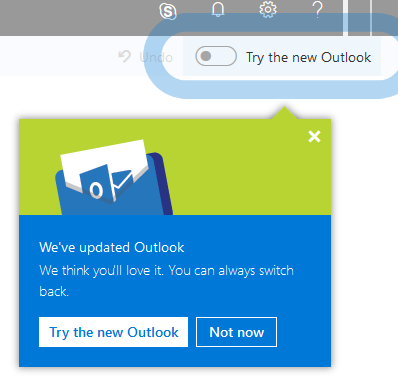
Toggle blog.pngUsers will soon have an opt-in toggle, that will give them the ability to try a new faster, smarter, and more personalized Outlook on the web experience.

When you click the toggle, you’ll see the all-new Outlook on the web modules for Mail, Calendar, and People. Users can opt-in/out as often as they want, meaning you can try it out, then revert back to the classic interface.

Here are some of the features you can expect:

1- Search with smarter, intelligence-driven results based on your recent contacts and activity
2- Files - Browse through a list of the files you've sent or received in a single view
3- Suggested replies allows you to respond to a message with a few clicks
4- Simplified event creation
5- Smart room suggestions
6- Simplified add-in experience
7- More ways to use and manage Groups in Outlook

Try it out soon and look for the exciting new features and design to apply to ESU Outlook users later this year!


Saandhyarag Sasidhar
Student Operations Manager
Web and Digital Strategies