Showing posts with label Recommended Technology. Show all posts

Monday, June 15, 2020

Microsoft Teams - Tips + Tricks

Microsoft Teams has been an increasingly popular instant messaging service provided by Microsoft in recent times. Everyone has probably had some experiencing using Microsoft Teams, and if you haven't, it's time to hop onto the train. We're going to cover some less commonly known features of Microsoft Teams today, and hopefully you'll be able to take advantage of some of these features!

'Do Not Disturb' Mode

Have you been in a meeting recently where someone's sound notifications for Teams are popping off? Have this happened to you? Teams has a common instant messaging feature where, when you receive a new message, it plays a small 'ding' sound to notify you of it. Although this is handy most of the time, there are times when you don't want to hear this notification sound. For example, when you are in a meeting or giving a presentation. That's where 'Do Not Disturb' mode comes into play. If you open the Teams application, and select your initials in the top right corner, there is an option to change your availability. If you have a meeting scheduled on your Outlook calendar during a specific time, Teams will automatically change your status to 'Busy', but that doesn't do anything about the notification sounds. You will need to navigate there manually and select 'Do not disturb'. This guarantees that any new messages will be silent until you turn your availability back to anything else. Below is a screenshot of how exactly to change your availability within the Teams application.
Screenshot of availability selection on Microsoft Teams
Availability Selection

Status Message

About to go on your lunch break? Need to step away from your computer for 15 minutes? Have a quick errand to run? Be sure to set your status message to reflect that! This allows your colleagues, and anyone on campus trying to message you on Teams, to know you are currently away from your keyboard. Teams also gives the option of setting timers for status messages, which is useful for everyone. For example, you can set your status to 'Taking lunch' for exactly one hour, and then it will automatically reset your status message. This can clear up any frustrations of delayed messages, and it's simply best practices to let everyone know the status of your availability. Below is a screenshot of what it looks like when messaging someone with a set status message.
Set Status Message

Sending Files + OneDrive

If you use Teams on the daily, it's quite common to send files back and forth through Teams. It's very handy and quick to send files. But, the issue of files being 'lost' can raise concerns. For example, if you sent a file months ago to someone and can't remember who you sent it to, what do you do? You'll probably search through all of your Teams' contacts and attempt to recover it. We can all agree that you should have stored it in OneDrive in the first place, right? Jokes aside, Teams does this for you! When you share files using the Microsoft Teams application, it automatically stores them into a OneDrive folder under your files. Below is a screenshot of what the folder looks like under 'My Files' in OneDrive.


And then, just like with any OneDrive folder, you can sort and filter through them to help you find your 'lost' files!


App Integrations

Teams allows you to integrate existing applications into your chats. This is not only much more fun than plain text, but it allows for more interactive conversations between you and your colleagues. You can check out which applications you can integrate into your Teams client by selecting 'Apps' in the bottom left of your client. A few examples that I'll give here would be Microsoft Forms, Planner, Weather, OneNote, and SharePoint. Be sure to check them out and see if any of the available application integrations can ease your daily workflow! Below is an example of a sample question I made with Microsoft Forms in one of my existing chats.
Microsoft Forms 'Poll'


I hope that some of you are able to utilize some of these Tips + Tricks into your daily workflow using Microsoft Teams. Be sure to poke around and Teams and explore the many possibilities of its uses.


Sam Derksen
Web Developer
Web and Digital Strategies

Tuesday, June 9, 2020

Why Is Email Important?

Outlook iconAlthough many of us enjoyed the interaction between each other in the office, there has never been a better opportunity to utilize technologies like email. Email isn't new by any means, but utilizing it as a primary communication source might be for some people. It's also worth noting that email is the primary official means of communication for Emporia State University. In a world where no physical meetings are taking place, email usage has increased, and rightly so!

There are many benefits to emailing people for communication methods, especially if you're using Outlook for Office 365. Your emails between colleagues are documented and are readily available by a quick search for a word, person, or subject. This potentially eliminates any miscommunication issues that you could be having with colleagues. Because of this feature, it's important to remember to write well thought out emails. Be concise with what you are trying to convey and the digital workforce will be thankful! Another benefit is simply keeping everyone in the loop. Being able to CC your colleagues/boss into your emails gives them a way to keep track of what's going on with certain projects/tasks. One could also argue that email is more secure than the word of mouth communication method. Outlook for Office 365 allows you to 'Encrypt' an email with various options depending on the confidentiality of the email's content. Be sure to learn more about the 'Encrypt' feature by following this link.

Hopefully this blog provides some insight to why email has become so important in our everyday workflows. Although this blog post is generally targeted at faculty and staff, it also applies to students with their student Gmail accounts. Stay on top of your inbox and your colleagues will take notice!

Sam Derksen
Web Developer
Web and Digital Strategies

Tuesday, April 7, 2020

Printing Alternatives When Working or Learning Remotely

Students may be missing one common function that was always at the ready--printing.  Now that we are all working and learning remotely, there are a few things that can bring up moments of worry including 1) Not being able to submit the assignment in the preferred format, 2) not being able to collaborate or proof a hardcopy of a document or 3) the document vanishing from digital existence on your computer before you can print a backup copy. (that never happens!)

Here are a few tips that you can do as printing alternatives when you may not be able to have a physical copy. With ESU already providing Google services to students as well as Office 365 for all ESU students and employees to download, there are multiple options available.

The Universality of the PDF

Documents can be sent as PDF files--PDF standing for portable document format. So just as it says, the document can be on different platforms while staying the same for each user receiving the document. To save as a PDF in Google Docs, you would go to File>Download>Download as PDF.  In other applications, you can simply choose to print the document as you would to a physical printer, but instead of choosing your printer you should have an option for "Print to PDF" or something similar.  In MacOS, there is a "PDF" button on the print dialogue.

Google

PDF's are also very good when it comes to storing the documents, especially for archival purposes. ESU students can store your documents in Google Drive, which means you won't have to worry if your documents are safe and secure.  Google Drive is available from Windows, Mac, web browsers and mobile devices, giving you quick access wherever and whenever you need it.  The ability to share from Google Drive also means you don't have to print out and distribute copies of documents--the most current version is always available to you and those you are collaborating with.


Google has an online saving that makes your documents easy to keep track of. Google Drive saves your work as you continue to make progress on it, guaranteeing that your documents will be as up to speed as possible. Google also offers Offline Editing which allows you to work without wifi or internet access, this is very helpful for those who might not have home internet! This is also beneficial because it gives you access wherever you go by being able to login to your account wherever there is a computer or mobile device.


Office 365

Office 365 offers many of the same features provided by Google services, but also has the added value of desktop and mobile versions of software. Word, Excel, PowerPoint and the other long-trusted suite for software integrates with your OneDrive personal storage (offered to all ESU students and employees), as well as employee's departmental SharePoint Drives.  With the current realities of working remotely, having a secure "cloud" environment to share, work, and collaborate has greatly improved the productivity and capabilities of our Office 365 users.

Do it LIVE!

We previously mentioned the sharing capabilities of Google, which is also true for Offie 365.  Along with that feature is the ability to edit a document right alongside your group members.  Using Google Docs or Microsoft Word you can each be making and discussing changes live--and seeing them as they happen.  There is no special setup--these are built-in features and they extend to spreadsheets, presentations and other document formats.  If you can create, proof and finalize a document live, there's no need to print it out and markup multiple versions!

Digital Ink

While these apps are great to use, you may choose a hardware solution that can make it seem like you're righting with a pen on paper, too.  Having an Apple Pencil with your iPad or Surface Pen with your Microsoft Surface makes taking notes and editing a document much easier--and completely natural if you're used to doing it on a printed copy. Using Microsoft Office's digital inking capabilities or any variety of mobile apps that support inking, allows you to write on the screen as if the document were actually in front of you as a printed piece of paper.

E-Fax

For ESU departments, E-Fax is a service that allows you to send and receive the document as if they were on an actual fax machine, but on your device. Users can fax from anywhere using your smart device or computer. This makes it a lot easier when sending documents that require printing (when you get back to the office) or are of a nature that require enhanced security.

These are just a few of the awesome applications that are available to use for your benefit! Hopefully, this gave you some knowledge that you can apply when learning or working remotely. Questions and concerns can be answered by contacting the IT Help Desk.
Stay Healthy Hornets!


Dakota Taylor
Social Media Student Assistant
Web & Digital Strategies


Friday, March 27, 2020

Group Collaboration

Group Collaboration


Is it your first time taking an online class? Are you stressed about not being able to communicate with your group mates? Don't worry, we've got your back. In this post, we'll cover what you need to know about virtually collaborating with your groups.

Sometimes collaborating with your group gets complicated; and bad communication can result in bad grades (and a bad mood.)    

We are here to help make collaborating online simple. All you need is a good internet connection and a reliable device. (A Windows laptop, a MacBook, an iPad, or even a smartphone.)

Need a new way to collaborate with your group on projects, assignments, and studying? 
Zoom is a great video chat software that allows you to not only chat, but also share your screen and give your group-mates control of your computer. Zoom is free and unlimited to all ESU students and employees.

Looking for a software that allows you and your groupmates to share and edit documents?
Google products such as Google Docs, Google Sheets and Google Slides. They are simple to use and convenient when everyone in the group must work on the same file. 

Do you not like video or audio chatting?
Text-based chat using messengers like Apple Messages, GroupMe, Snapchat, Facebook Messenger, and WhatsApp, may be more to your liking. You can also chat on Canvas under the “chat” tab. If none of those sound good to you, then emailing your groupmates is the always an option. 
(Just remember that all group members need to be diligent in checking and responding to messages!)

Are you trying to find a safe place for storing your files online where your group-mates can also access them?
OneDrive and Google Drive are your best options in this situation. Upload your document and share it with people you want to have access to the document. You can allow them to only view the document or both view and edit it; it’s totally up to you.  

Working on an individual project?
Emporia State University offers free access to all the Office365 products. Word, Excel, Access, PowerPoint and more. All ready for you to use free of charge as a student. You can download them at hornet365.com

Having online classes might be stressful at first, but services we all have access to make our lives much easier. Check back weekly for more useful tips, and more! Stay safe, stay healthy and stay inside.

Tyler Parker
Social Media & Marketing Student Assistant

Web & Digital Strategies

Work Anywhere - Employee Guide

Power to Work Anywhere


Are you ready to work from home? We sure hope so. If not, we look to prep you with everything you'll need to know about the near future of ESU classes.

As an ESU employee, there are a number of things that you need to take in to account to become a secure and productive remote worker.

Let's begin with the basics.
You're going to need a computer or compatible device - If you already have an ESU laptop with Windows or MacOS, then you're set.
If you have an iPad, you should be able to do most tasks as well. (But if you mostly work with Microsoft Office, you're going to want a keyboard.)

If you don't have an ESU laptop and you're familiar with cloud services - You can use your home computer.
However, if you're using secure services that need a VPN, (Banner Admin pages, Jabber, and the W: drive,) you'll need to use an ESU laptop.

If you need to check out an ESU laptop, visit the Teach and Work Anywhere site on emporia.edu/covid19 and fill out the form under "Recommended Equipment."

Next,
You'll need communicate with your colleagues or students - Starting with your ESU office phone.
Unfortunately, you won't be able to forward it to your home phone or cell phone due to technical limitations.

This leaves you with two alternatives:

  1. Change your voicemail - Inform callers that you will return their call via phone or email. Instructions and more information located on the Work Anywhere site.
  2. Jabber Software Client - This is for lines with a larger call volume, (Admissions, Registration, or any department's main line.) Using the Jabber software client installed on your laptop, you'll be able to make and receive calls using the speaker and microphone on your computer. (Note: you must be connected to the ESU VPN.)

ESU offers two types of applications and services: 

  1. Cloud based - You can use it anywhere on any device (Office 365, Teams, Canvas, Microsoft Teams and Zoom.)
  2. Secure (Requires VPN connection to use.) - A VPN consists of software that runs on your computer and connects back to the ESU network, providing a secure tunnel. Essentially, you're on the ESU network from home. (Banner Admin pages, Jabber, and the W: drive.)

An alternative to using the VPN is ESU's online virtual computer lab, SkyLab, ESU's virtual computer lab

Have you moved to SharePoint Drive or your personal OneDrive? - You can access those from anywhere.
If you still have files on the W: or X: drives, you will need VPN or SkyLab to access those files.

Web Conferencing Software


There are 2 Options for Employees

  1. Zoom - ESU's primary platform for hosting a video conference. Instructors can use it to have virtual classes and departments can use it to host meetings. (All employees have access to Zoom via Hornet 365)
  2. Microsoft Teams - ESU's primary platform for instant messaging. You can access it from anywhere and on any device. Virtual meetings can be hosted on Teams as well. (All employees have access to Microsoft Teams via Hornet 365)

Now that you're informed on ESU's online capabilities, you have the ability to work from anywhere.

For more information, visit our Teach + Work Anywhere website.

Tyler Parker
Social Media & Marketing Student Assistant

Web & Digital Strategies

Monday, March 23, 2020

Microsoft Teams vs. Zoom - Which Should You Use?

Teams vs. Zoom

As we move our classes online, you may wonder, "What is the difference between Teams and Zoom?"

ESU offers a plethora of resources for conferencing and communications, and today we'll be comparing two: Microsoft Teams and Zoom. Both software are great when it comes to online collaboration, but they both have their strengths and weaknesses.

Both Microsoft Teams and Zoom offer individual and group communication through messaging and video conferencing. This can come in handy when working on group projects, online instruction, presentations, or traditional face-to-face meetings.  So the question is, when does one work better than the other?


Microsoft Teams:

  • Quick Messaging
  • File Sharing
  • Push-Notification Instant Messaging
  • Text-Based Group chats

Zoom:

  • Massive Video-Calling
  • Online Classroom
  • Phone Dial-In Service
  • Screen Casting
  • Screen Recording

Both services offer a mobile app as well, which works best with iPhones.

Looking to download Zoom? Click here.
Looking to download Microsoft Teams? Click here.

For more information, watch episode 12 of IT Only Takes a Minute where we discuss these further in depth.


Questions? Contact the IT Help Desk and we'll be happy to help you out!
Call: 877-341-5555
Email: helpdesk@emporia.edu


Tyler Parker
Social Media & Marketing Student Assistant
Web & Digital Strategies

Friday, October 18, 2019

Does iPad OS now make the iPad a computer?


iPad with iPad OS


During the 2019 World Wide Developers Conference, Apple announced an all new Operating System for the iPad platform. This meant we would now have macOS, iOS, watchOS, tvOS and finally the newly announced iPadOS.

iPadOS is built with iOS 13 as the foundation, so a lot of iOS 13 features are built-in. But with a twist! It packs additional features designed exclusively for the iPad, making it a whole new powerhouse, but with a significant learning curve. Fret not, with true dedication to learn and the passion to figure out how it fits into your workflow, you too can take advantage of this impressive platform.

Currently iPadOS can be installed on the following devices:
  • iPad Pro (Series 1, 2 and 3)
  • iPad (5th, 6th and 7th Generation)
  • iPad mini (4th and 5th Generation)
  • iPad Air (3rd Generation)
  • iPad Air 2
So what makes the iPad more than an iPhone with a bigger screen?

Better Multitasking. Now with improved Slide Over you can have multiple 'iPhone sized' apps always running, ready to be accessed with one swipe. Now, you can also have the same app running in multiple windows. You can also have the same app in multiple work spaces! Want to see how many instances you have running of a particular app? You can now with the App Expose feature.

Floating Keyboard and Swiping. You know how the keyboard would take 1/3rd of the available screen real estate of your iPad? Not anymore! You can shrink the keyboard to an iPhone sized keyboard, and now even swipe for easy one handed use.

Better File Management. Apple has finally overhauled the way you access and store your files. With the added feature of connecting external drives (better have your dongle handy) and syncing your cloud drives (Google Drive, OneDrive etc).

New Home Screen with Widgets on the ready. Having widgets always on the home screen improves upon your overall experience.

Apple Pencil latency upgrade. It's as smooth as writing on paper, but on glass instead. With just a software update they've managed to improve the latency to a low 9 milliseconds.

Text Editing with ease. You now have gestures for multi-select, cut, copy, paste, undo and redo.

Desktop Grade Safari. One of my biggest issues was getting served mobile websites on my big iPad screen. Well not anymore!

Sidecar. If you have a MacBook and an iPad, then this one is for you. Extend your MacBook work space to your iPad with pencil support. MacOS on your iPad? Sounds like a great work system!

Side Note: I've tried to use this in three different instances and failed. Unfortunately, Sidecar is limited to Macbooks with the butterfly keyboard, Mac Mini 2018, iMac late 2015 and later, iMac Pro 2017 and later, Mac Pro 2019.

Better Screenshots. You can now use your Apple Pencil to take a screenshot, with the added ability of taking full page screenshots.

Mouse Support. Don't get too excited about this one yet! Mouse support is available only as an accessibility feature. So, the experience is very limited.

Font Management. You can now have custom fonts installed and use them in all your apps. Simple as that.


Although, this isn't a 1:1 laptop replacement, it definitely is a great laptop alternative for. The iPad is a behemoth of a platform, that will allow you to perform 90% of your desired tasks (albeit the special software that you'd currently need a computer for.) Now. all you have left to do is figure out how you're going to revamp your work flow to accommodate for the touch screen!


Screenshots of an iPad
New Home Screen + Widgets | Better Screenshots with Markup | QuickType Floating Keyboard

Screenshots of an iPad
Multiple instances of the same app & Desktop Grade Safari |
Full page Screenshots with Markup | Multiple Apps in Slide Over

Screenshots of an iPad
Sign In With Apple


Saandhyarag Sasidhar
Student Operations Manager
Web and Digital Strategies

Friday, September 27, 2019

iOS 13 and Watch OS 6

iOS 13 and Watch OS 6

Since Apple released the well anticipated iOS 13 and Watch OS 6 updates yesterday, I've had the opportunity to put it through a week of testing.

If you have an iPhone SE, 6S, and everything after that (the 7, 8, X, XR, XS) and have been thinking about updating, go ahead! You're going to enjoy the new life it breathes into your Apple devices.

NOTE: Just to be on the safe side, be sure to back up all the valuable data on your device and keep the phone plugged in while it updates. Better safe than sorry, trust me.

Since a majority of our users are iOS users, I'm sure you're wondering, "What do I get from this update and why should I even bother?" Well, I'm glad you asked.

Let's start with the top features from iOS 13.

  • You now have a system wide Dark Mode. Let's sign a petition and dark mode everything!
  • Swipe Keyboard. Try swiping a word on your keyboard! It's an easier and faster method for typing with one hand! They call it 'QuickPath'..
  • Faster FaceID. Apple claims 30% faster!
  • New Built-In Photo and VIDEO Editing Tools. If you're a digital creative, you're going to appreciate this!
  • Find My (Now combines Find my iPhone and Find my Friends). Now, even if your iPhone is not connected to the internet you'll be able to tell where it is.
  • Files. Now you have the ability to connect external drives and USB's natively. Along with unzip capabilities.
  • Safari. You now have access to a built-in download manager! Along with upgraded browser capabilities.
  • Reminders.  App Updates.
  • Notes. App Updates.
  • Mail. App Redesign
  • Siri. Siri now sounds a lot better!
  • Better Screenshots. 
  • Control your Contact Information Persona. If you someone adds you as a contact, the name and image you want will automatically pull into their contact.
  • Memoji Stickers. Extend your Animoji persona and create new Memoji stickers.
  • Sign In with Apple. Before you had the option to make an account, or use the convenient Sign in with Google and Sign in with Facebook. Now, there's a new way to sign in! 
  • Use your Gaming controllers. If you enjoy mobile games, now you can connect your favorite Xbox or PS4 Controller and start gaming!


Next we got Watch OS 6.
  • New Watch Faces. Cool new styles to try!
  • Dedicated App Store. All the more apps for your watch!
  • Noise Level. If you spend too much time in a loud environment, you'll be notified!
  • Voice Memos. Got a quick thought? Narrate it to your new best friend.
  • Cycle Tracking. Apple's big on Health
  • Calculator. Calculate right on your wrist! Take it a step further and now you can easily know how much the tip will be and how to evenly split the bill.
  • Activity Trends. Because the more health data you have, the more you strive to succeed!


There were minor bugs I have seen or had colleagues report to me. However, Apple has released iOS 13.1 today, and it should squash all the bugs (if any) and provide improvements to your overall experience. Apple also released iPad OS today and I will be going over it next week! 


Have you updated to iOS 13.1 yet? If so, what are you currently enjoying about it?


Saandhyarag Sasidhar
Student Operations Manager
Web and Digital Strategies

Friday, September 13, 2019

New 2019 Apple Devices!


On September 10, the WDS team attended the Apple special event virtually. During which, Apple unveiled a new iPad, three new iPhones, and a new Series 5 Apple Watch. Here's all that you need to know, before deciding!

iPhone 11 
Starts at $699
Six Colors
Two Cameras (New Ultra Wide Camera)
A13 Bionic Processor (Faster and more Battery Efficient)
Faster Unlocking with FaceID


iPhone 11 Pro
Starts at $999
Four Colors
Three Cameras (New Ultra Wide Camera)
Super Retina XDR Screen (It means it's really really good!)
A13 Bionic Processor (Faster and more Battery Efficient)
4-5 hours longer battery life
Faster Unlocking with FaceID


You can even get a bigger screen size with the iPhone 11 Pro Max


Apple Watch Series 5
Starts at $399
Always On Display
New S5 Processor
ECG monitor
Built-in Compass
New Case Materials (Titanium, Ceramic, Expensive...)

On Cellular models you can now make emergency calls internationally


iPad
Starts at $329 (education discount bring it to $299)
10.2 Retina Screen
A10X Processor

iPad OS Support
Smart Keyboard Support
Apple Pencil 1 Support


If you decide to keep your current devices, check out how iOS 13 and Watch OS 6  can breathe new life into your devices!

For Emporia State University

Students, faculty and staff looking for personal/at-home devices can get discounts for the devices from Apple. For faculty/staff looking to purchase one of these devices, please contact the IT Help Desk for more information.  Our IT purchasing catalog, IT Advisor, will be updated with our recommended models in each category shortly.


Saandhyarag Sasidhar
Student Operations Manager
Web and Digital Strategies

Friday, January 11, 2019

A Student's Best Friend: The Echo Dot

Amazon's third version of the Echo Dot is quite an improvement. Improved hardware has caused the third version to be lighter, smaller, and an expert at voice recognition. We've recently had the chance to play around with some of the new Echo Dot's functionalities, and for only $29.99 on Amazon, it is something that every student could utilize. The Echo Dot can easily hear, and understand you from anywhere in the room. In addition to all of the pre-built functions of the Echo Dot, there are also many options for customization. With the help of Alexa Skill Blueprints, you're able to add many different skills to Alexa. Very useful for students, you can have your Echo Dot ask you questions, recite definitions, and quiz you on whatever topics you'd like. This is a very handy feature as it can make you feel as if you're studying for a test with another human!

Sam Derksen
Student Web Developer
Web and Digital Strategies

Sunday, December 9, 2018

A Good Year for Apple Hardware

This year has been a fairly extensive one in terms of updates and new releases from Apple. From the latest MacOS update “Mojave” to this year’s round of iPhone refreshes, the Cupertino-based company has served up a considerable number of new items for consumers to choose from.  I will highlight two that have greatly enhanced my personal workflow.

The first is what I call Apple’s most underrated product of the year—the MacBook Pro refresh.  It didn’t get a big Apple Event debut but came packed with new features—especially if you hadn’t purchased last year’s model. Eighth generation Intel processors, True Tone display, T2 security chip, updated graphics and a slightly-tweaked keyboard are all highlights packed into the MacBook Pro’s trademark aluminum chassis. As expected, the MacBook Pro continues its trend of releasing 13 and 15 inch models.  While I had never warmed up to the Touch Bar, these new models showcase the efforts developers have included over the past few years to bring out the features of the Touch Bar.  Add to that the capability of Touch ID and you have a device that feels incomplete without it.  And to top it off, “Hey, Siri” is now supported!

Unlike the MacBook Pro, Apple’s other winner did get a lavish debut this fall--the iPad Pro.  If you’ve previously used an iPad or iPad Pro—forget what you knew. Throw it out.  This third generation tablet is a complete refresh in every way including the overall look of the device.  It comes in 12.9 and 11 in models, but it’s smaller in size than previous generations.  The home button is gone, and the Liquid Retina display extends nearly all the way to the edge.  

iPad Pro
The iPad Pro (third generation)
Internals include a new superfast A12X Bionic processor and a TrueDepth camera with Face ID—yes, your iPad now recognizes you (similar to Microsoft’s Windows Hello tech).  For us digital artists, the iPad Pro has a new Apple Pencil, which has double tap feature for switching between brushes, erasers, etc.  Like the Surface Pen, the Pencil now magnetically attaches to the iPad—but it also CHARGES it.  No more strange connection sticking out of the bottom (see previous iPad Pro’s).  And while I’m not sure the full benefit of it yet, the new USB-C port is undoubtedly a move in the right direction.  And for those who want a keyboard, Apple's Smart Folio Keyboard attaches with magnets located across the entire iPad, providing a strong grip.  I went for the less expensive Smart Folio case which essentially provides protection from the front and back, but leaves the sides exposed.  Apple continues to proclaim the iPad can replace your laptop and while I'd be lost without my MacBook Pro and Surface Pro, the new iPad Pro takes a giant leap in that direction and with a few tweaks to iOS could become one's daily driver.

As I mentioned, these are only two devices that Apple launched in 2018.  Beyond the three iPhones, there was the Apple Watch and the long-awaited updates to the MacBook Air and Mac mini.  With semi-recent updates to the iMac, MacBook and AppleTV there are many worthy options available to you.  The best recommendation I can offer is to do your research and make sure you know how you're going to use your new tech in advance.

ESU students, faculty and staff get a discount on most of Apple’s hardware, so make sure to take advantage of that if you’re in the market for a new device.  


Brian Osbourn
Director, IT Web & Digital Strategies


Friday, October 12, 2018

Did you know what our digital signs can do?

The digital signs around university bring campus into life. The services and features that the digital signs offer are incredible and very helpful. If you go to any digital sign and touch the menu, it will provide you with many services and features.


Some of those features:
  • Interactive Maps. This feature can provide  you with many locations by touching each internal category. For example:
    • It shows academic and administrative buildings.
    • Parking permits and free parking locations.
    • Bicycle stations, where you can do some fixes to your bike.
    • Emergency phone stands, where you can call help from different locations around campus.
    • Athletics, etc.
  • Campus Map. This gives you some useful information. Like:
    • It shows each parking permit color 
    • Provides you with  Hornet Nation Wi-Fi coverage.
  • News. This tab gives a wide variety of announcements and events around campus.
  • Weather, which includes two features:
    • Includes the weather straight from the National Weather Service.
    • It shows a radar view of Emporia and surrounding areas.
Now you can get many things you want, right at our digital pulse!


Ahmad Alaliwi
Student Web Developer
Web and Digital Strategies

Friday, October 5, 2018

Apple Watch Series 4


APPLE 
WATCH 
4


On September 12, 2018, Apple held its annual special event where they released the iPhone XS, the iPhone XS Max, and the Apple Watch 4. After taking it all in, I knew I had to have the new watch.

I recently had the opportunity to daily drive the Apple Watch Series 4 (44mm) and it is a beautiful combination of machinery and technology.


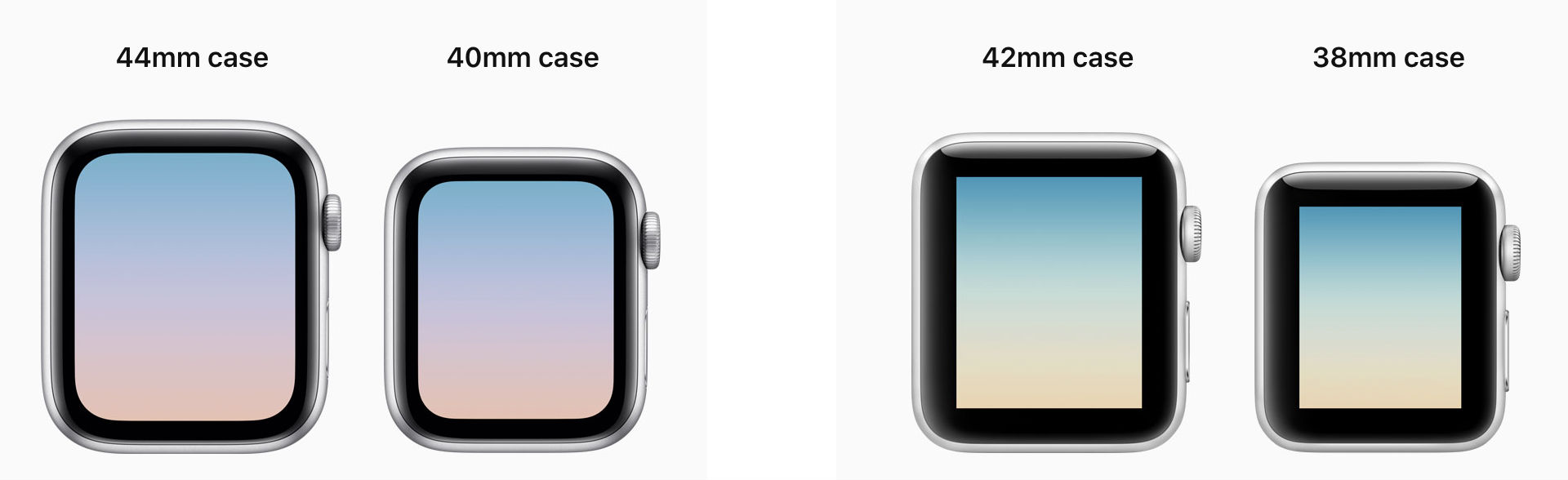
  • A larger LTPO OLED Retina display in same form factor (40 mm and 44 mm), previously (38 mm and 42 mm).
  • Along with a 2x faster S4 processor
  • Better Haptic Feedback
  • New Digital Crown
  • FDA approved ECG feature (coming soon)
  • Fall Detection that can contact Emergency SOS if you've taken a hard fall
  • Optional  Improved Cellular Connectivity
  • Louder Speakers
  • New watch faces
  • New workouts added
  • Apple Pay

Image result for apple watch 4

For me, personally, it's a nice extension of my phone and productivity while tracking various health elements. I'm sure as time goes on there will be various applications that one could use straight from the watch. On top of all that, it gives me the excitement and feelings of a a child with a new toy. What more could you ask for?

If you're on the previous generation Apple Watch, you can get the software upgrade to watchOS 5 now!


Emporia State University Faculty and Staff: If you think you might be able to use the the Apple Watch 4 for work, contact the IT Help Desk for more info.

Saandhyarag Sasidhar
Student Operations Manager
Web and Digital Strategies

Sunday, September 16, 2018

Apple New Releases

Apple held their annual main products release event on September the 12. They have released 4 new products:

All the new phones are sporting Apple's new faster A12 bionic system-on-chip:
  • Apple watch (Series 4)
    • New Watch OS
    • Better CPU
  • iPhone X R
    •  Liquid Retina Display
    • IP67 Water Resistance
  • iPhone X S
    • Gold stainless steel
    • 5.8" OLED Display
    • IP68 Water Resistance 
    • Dual-Sim support
  • iPhone X S Max
    •  6.5" OLED Display
    • Same features of X S but bigger!
We will continue with a follow up blog post for more details and how you can benefit from these new technologies.

Ahmad Alaliwi
Student Web Developer
Web and Digital Strategies
Information Technology

Friday, September 7, 2018

Need a To-Do App?

Microsoft has a noteworthy application called "To-Do." There is no easier way to create a to-do list now with Microsoft. Not only can you create to-dos, but also set a time, a reminder, and even steps to remind you how to complete a task. Also, you can set due dates for your tasks and categorize them. For example, you created a "work out" category, you can add to that category "Go to gym" at 6:00 and "Protein shake" at 7:30, etc. The application has many more features that might help organize your tasks.

So, why load your head with to-dos when you have Microsoft To-Do? Check it out.

You can download here for:

Youtube Signature Devices 2019

YouTube recently released a list of nineteen Signature Devices for 2019, that are able to deliver the
best-in-class YouTube viewing experience. Some of the factors that they took into consideration were:
  1. High dynamic range support
  2. Reliable DRM performance
  3. 4K decoding
  4. 360° video
  5. High frame rate
  6. Next generation VP9 codecs

+ Samsung Galaxy Note 9
+ Xperia XZ2 Premium
+ U12+
+ OnePlus 6
+ G7 ThinQ
+ Xiaomi Mi 8
+ Xperia XZ2 Compact
+ Xperia XZ2
+ Nokia 8 Sirocco
+ Mi Mix 2S
+ Samsung Galaxy S9
+ Samsung Galaxy S9+
+ Google Pixel 2
+ Google Pixel 2 XL
+ Huawei Mate 10 Pro
+ Samsung Galaxy Note 8
+ LG V30
+ Samsung Galaxy S8
+ Samsung Galaxy S8+


The following devices demonstrate the latest in video technology, and can enjoy vivid 4K HDR videos, immersive 360° video, and fast video load times - all while using less bandwidth.

However, you would have noticed by now that no iPhones have been mentioned in this honorary report. Now, it would be wise to take this report with a grain of salt, as Google owns the Android platform, the YouTube platform, and has designed the highly optimized VP9 codecs that give you the above mentioned abilities.
Apple doesn’t support the VP9 codec, and this is why Safari users don’t have the option to watch 4K footage on YouTube.

Although, this wouldn't make a huge difference while purchasing new hardware, it would definitely be making the rounds in the new device marketing.

Saandhyarag Sasidhar
Student Operations Manager
Web and Digital Strategies

Sunday, July 15, 2018

Summer Refresh: The latest hardware from Microsoft and Apple

This week brought the announcement of two major hardware refreshes from both Microsoft and Apple.  At first glance, both seem to be generally small tweaks to their overall lineup, but upon further examination of the details each new offering provides consumers with something that was previously missing.


Surface Go

Microsoft has boldly added an entirely new Surface device--a 10" 2 in 1 that checks all of the Surface brand staples--touch, pen support, 3:2 display, etc., but also fills in part of the Surface lineup that hasn't been filled since 2016.  The new Surface Go's claim to fame is affordability and mobility.  The base model (no Type Cover or Surface Pen is included) starts at $399, but you're going to want the upgraded model that runs around $550 (that's around $520 for us education customers).  While the least expensive model includes 4 GB of memory, the bump to 8 GB is a much better entry point if you're going to spend money on a device like this one.  Also, the $399 version uses eMMC storage--a type of storage that provides noticeably less performance than the 128 GB SSD found in the $550 option.

The Surface Go uses a Pentium Gold processor, which is a middle-of-the-road CPU that gets the job done for most business/student users, but won't deliver the performance of an i5 or i7 found in the Surface Pro or Surface Book lines.  You'll also notice the Go replaces the traditional USB port for the new USB-C.  Otherwise, the Surface Go has the connectivity you'd expect from the Surface line--Surface Connect for power, Bluetooth, WiFi, MicroSD card reader and the headphone jack.  This Surface includes the 165 degree kick stand and supports Windows Hello--the ability to log you in to your device using facial recognition.  The tablet itself marks the lightest Surface device at 1.15 lbs and is only 8.3 mm thick.  Microsoft claims 9 hours of battery life, but actual use is probably less given the general testing method of using video watch time as a way of measuring. 

The Surface Go does what Microsoft intends-give users, especially those of us in education--a cheaper option.  But this comes with the asterisk that notes that you'll really need that add-on Type Cover keyboard ($124 extra), while the Surface Mobile Mouse and Surface Pen are nice to have if you want to get the most out of this form factor.  So, the final price comes in at $766 (again, this is education pricing, regular consumers pay more).

So, should you get one?  If you're just needing a general purpose budget laptop--probably not.  Your best bet is to look somewhere other than the Surface line.  If you're a business user and want this to be your only computer--skip this device.  Spend the extra dollars and go for the Surface Pro/Book 2.  If you're needing a Windows tablet as a general "go anywhere" device or even a second device this is where you go for the Surface Go.  If you're a student and just need a tablet for Office docs, email, note-taking, light media editing, drawing and watching videos--the Surface Go will work just fine.

MacBook Pro 13" and 15"

While Microsoft's device fills in the gap for a cheaper Surface, Apple's latest MacBook Pro targets the higher end with a refresh designed for professional users--video editors, artists, power users and others who need performance in their mobile workstation.

Technically, the refreshes only target two existing MacBook Pro models--those offering the Touch Bar at 13 and 15 inches.  And also it's worth noting there is no outward design change in the body of the MacBooks.  From the outside they look like last year's model.  On the inside, however, you'll find a pretty noteworthy update that delivers more than just a refresh.

While there are many new features, here are the main takeaways:

  • New 8th generation Intel processors (quad and hex core options available, including an i9 on the 15")
  • Increased memory (up to 32 GB on the 15" model)
  • True Tone displays (the display adjusts white balance for ambient lighting) 
  • Hands-free Siri control
  • 3rd Generation butterfly keyboard (supposedly quieter than last year's model)
  • Iris Plus 655 Graphics (13") and Radeon Pro 550X or 560X (15")
  • Super fast SSD hard drives (some media outlets reporting the fastest drives ever seen in laptops in initial tests) up to 4 TB
  • T2 chip that, among other things, keeps your hard drive secure by encrypting it out-of-the-box

Both sizes offer around 10 hours of battery life (Apple's actual time is typically very close to what they claim).

If you need more video horsepower, Apple has worked with Blackmagic to create an external GPU for an extra $700.

Prices vary, starting with around $1699 (edu pricing) for the base 13" with Touch Bar going upwards of $7000 for a 15" with every bell and whistle available.

So, should you get one?  If you're a Mac user and are in the market for a laptop the short answer is "yes."  No other MacBooks received an update and while the smaller 12" MacBook doesn't contain extremely outdated internals, the MacBook Air should be avoided at all costs.  By all means, go for the MacBook Pro 13"with Touch Bar base model.  If you're a power user, then you'll need to select the specs that align with your needs.  If budget is a concern, you can still go for last year's model without the Touch Bar and get a respectable laptop, but the Touch Bar is growing beyond being a niche feature as more 3rd party developers are adding capabilities to it.

For Emporia State University

Students can get discounts for the devices discussed here from Microsoft and Apple, as well as other offerings from both vendors.  The same is true for faculty and staff looking for personal/at-home devices in most cases.  For faculty/staff looking to purchase one of these devices, please contact the IT Help Desk for more information.  Our IT purchasing catalog, IT Advisor, will be updated with our recommended models in each category shortly.

 -Brian Osbourn, ESU, Director, Web & Digital Strategies