Microsoft is at it again with the announcement of the new Surface Pro X. This 2-in-1 laptop also acts as a tablet and offers a slim, sleek design, next-gen graphics, and plenty of storage. Aiming to be the perfect laptop for business, this model succeeds. Whether it's used in the conference room or the classroom, let's take a look at how the Surface Pro X can benefit you.
Display
The Surface Pro X offers a 13" touchscreen display, allowing you to see and do more an a near edge-to-edge screen. The screen automatically adjusts the brightness based on your environment's lighting.
Design
Microsoft's thinnest 2-in-1 laptop measures in at an astonishing 7.3 mm so it stays out of your way and fits right into your backpack with no unnecessary bulk. The laptop is offered in a matte black design, complimenting the anodized aluminum casing. Microsoft also provides a carbon composite, fan-less thermal cooling system to make sure the device doesn't overheat.
Capabilities
Microsoft offers a removable SSD which comes in 128, 256, or 512GB options. The battery life offers 13 hours of typical device usage, so you don't need to worry about taking your charger to class. Campus WiFi not working? No problem. The Surface Pro X includes LTE Advanced Pro 4 so you can use cellular data to finish those last-minute projects.
This laptop is perfect for students for it's convenience, capabilities, and innovation. Made up your mind? The Surface Pro X retails for $999 and is available at Best Buy or Amazon.com and Microsoft.com. But don't worry, Microsoft offers a student discount of 10% on Windows devices so you're not breaking the bank.
Tyler Parker
Social Media & Marketing Student Assistant
Web & Digital Strategies
Sunday, October 27, 2019
Friday, October 18, 2019
Does iPad OS now make the iPad a computer?
During the 2019 World Wide Developers Conference, Apple announced an all new Operating System for the iPad platform. This meant we would now have macOS, iOS, watchOS, tvOS and finally the newly announced iPadOS.
iPadOS is built with iOS 13 as the foundation, so a lot of iOS 13 features are built-in. But with a twist! It packs additional features designed exclusively for the iPad, making it a whole new powerhouse, but with a significant learning curve. Fret not, with true dedication to learn and the passion to figure out how it fits into your workflow, you too can take advantage of this impressive platform.
Currently iPadOS can be installed on the following devices:
- iPad Pro (Series 1, 2 and 3)
- iPad (5th, 6th and 7th Generation)
- iPad mini (4th and 5th Generation)
- iPad Air (3rd Generation)
- iPad Air 2
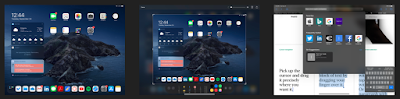
Better Multitasking. Now with improved Slide Over you can have multiple 'iPhone sized' apps always running, ready to be accessed with one swipe. Now, you can also have the same app running in multiple windows. You can also have the same app in multiple work spaces! Want to see how many instances you have running of a particular app? You can now with the App Expose feature.
Floating Keyboard and Swiping. You know how the keyboard would take 1/3rd of the available screen real estate of your iPad? Not anymore! You can shrink the keyboard to an iPhone sized keyboard, and now even swipe for easy one handed use.
Better File Management. Apple has finally overhauled the way you access and store your files. With the added feature of connecting external drives (better have your dongle handy) and syncing your cloud drives (Google Drive, OneDrive etc).
New Home Screen with Widgets on the ready. Having widgets always on the home screen improves upon your overall experience.
Apple Pencil latency upgrade. It's as smooth as writing on paper, but on glass instead. With just a software update they've managed to improve the latency to a low 9 milliseconds.
Text Editing with ease. You now have gestures for multi-select, cut, copy, paste, undo and redo.
Desktop Grade Safari. One of my biggest issues was getting served mobile websites on my big iPad screen. Well not anymore!
Sidecar. If you have a MacBook and an iPad, then this one is for you. Extend your MacBook work space to your iPad with pencil support. MacOS on your iPad? Sounds like a great work system!
Side Note: I've tried to use this in three different instances and failed. Unfortunately, Sidecar is limited to Macbooks with the butterfly keyboard, Mac Mini 2018, iMac late 2015 and later, iMac Pro 2017 and later, Mac Pro 2019.
Better Screenshots. You can now use your Apple Pencil to take a screenshot, with the added ability of taking full page screenshots.
Mouse Support. Don't get too excited about this one yet! Mouse support is available only as an accessibility feature. So, the experience is very limited.
Font Management. You can now have custom fonts installed and use them in all your apps. Simple as that.
Although, this isn't a 1:1 laptop replacement, it definitely is a great laptop alternative for. The iPad is a behemoth of a platform, that will allow you to perform 90% of your desired tasks (albeit the special software that you'd currently need a computer for.) Now. all you have left to do is figure out how you're going to revamp your work flow to accommodate for the touch screen!
![]() |
| Multiple instances of the same app & Desktop Grade Safari | Full page Screenshots with Markup | Multiple Apps in Slide Over |
Saandhyarag Sasidhar
Student Operations Manager
Web and Digital Strategies
Monday, October 14, 2019
myIT Tip of the Week
What Browser are you using?
Here at the help desk, we receive a lot of calls with browser-related issues. If you happen to be trying to reach a page you use every day and that site isn’t working, it can usually be fixed by simply trying another browser. If you have Google Chrome, give it a try. Chrome works best if you are accessing Banner 9 Admin pages and Canvas. You are free to use the browser of your choice, but remember some sites only work in specific browsers. One example is InfoPath on Form Central. InfoPath Form links must be opened using Internet Explorer.
Sunday, October 6, 2019
Cyber Security Month: Tips of the week
In honor of Cyber Security Awareness month, the IT department has been working to bring you helpful tips, tricks, and reminders to keep you and your personal information safe. Here, we take a more in-depth look at some of the tips we've provided.
1. Filter What You Post
Employers are looking into social media more and more everyday. Whatever you post today has the potential to affect your future career and reputation. Remember, there is no ‘Delete’ button on the Internet! Share with care, if a post or picture is deleted from your profile even seconds after posting it, chances are someone still saw it. Even the ever so popular "Finsta," short for "fake Instagram" is not a valid form of privacy. Followers of the account have the ability to screenshot posts, send your posts to other friends via direct message, or even just pulling up your account in person.2. Update Your Privacy Settings
Set your privacy and security settings to your comfort level for information sharing. Disable geotagging, which allows anyone to see where you are—and where you aren’t—at any given time. Geotagging can be used to collect your information for marketing, sales, and many other purposes. Many apps track your location in the background even when you're not using them!
3. Stay Away From Strangers
Connect only with people you trust! Most social networks are a journal of your personal information. They display your name, your friends, your likes and interests, locations you've been, and even workplaces and personal addresses. While some social networks might seem safer for connecting because of the limited personal information shared through them, keep your connections to people you know and trust.4. Limit Personal Information
Because social networks display the information previously discussed, limit what information you post on social media. From personal addresses to where you like to grab coffee, most people treat their accounts like an autobiography. What you may not realize is that these details are all that criminals need to know to target you.5. Speak up!
Speak up if you’re uncomfortable! If a friend posts something about you that makes you uncomfortable, let them know. Likewise, stay open-minded if a friend approaches you because something you’ve posted makes them uncomfortable. People have different tolerances for how much the world knows about them, and it is important to respect those differences. Don’t hesitate to report any instance of cyberbullying you see.
Tyler Parker
Social Media & Marketing Student Assistant
Web & Digital Strategies
Labels:
blog,
Communication,
Cybersecurity,
Information Technology,
Passwords,
Safety,
Security,
social media
Thursday, October 3, 2019
myIT Tip of the Week
Tips from our Classroom Techs:
Before your Meeting/Class, it may be helpful to check:
- 1) Does the space have the technology you are needing for your meeting/class?
- 2) Are you logged in as SMART?
- 3) If you are having a guest presenter speak, it would be helpful to ask them if they will be bringing their own device. If so, it would also be helpful to make sure that you have a way to connect their device to the projection system. Will they be able to connect to what is available?
- 4) Will an adapter be needed?
- 5) Make sure the media embedded in the presentation (PowerPoint, Google Slide, etc.) is embedded properly and playing audio.
Issues with displays/podium/projector? Have you tried?
- 1) Checking to see if the “Power” is on?
- 2) If you aren’t getting a display on the monitor, try checking to make sure that the monitor is on, and connected to power.
- 3) If you see your display on one screen and not another, try changing the display settings from “Duplicate” to “Extend these displays”. You can do this by right-clicking on the desktop and choosing “Display Settings”.
- 4) "Googling" change display settings or change audio settings in windows 10 or Mac OSX is a great way to find the most current way to accomplish finding the current settings on a classroom computer.
Before your ZOOM meeting
- 1) Do you have a ZOOM Pro account?
- 2) Have you tested your tech before your meeting?
- 3) Do you have a ceiling mounted camera and speakers?
Friday, September 27, 2019
New Service... Hornet Calendar!
Hornet Calendar is a school-wide calendar of events. This calendar will be displayed on our public website and on Hornet 365's homepage. Think of it as your centralized, one-stop-shop for Emporia State events. Hornet Calendar is the final piece of the puzzle of our promoting mediums. Along with concurrent use of Hornet TV, Hornet Announcements, and Hornet Sites, this assures that your content is being promoted by all of the mediums offered here at Emporia State. Let us know which events you'd like to display by submitting an event here!
Guidelines and regulations of Hornet Calendar can be found on our Web + Digital guide.
Sam Derksen
Web Developer
Web and Digital Strategies
Guidelines and regulations of Hornet Calendar can be found on our Web + Digital guide.
Sam Derksen
Web Developer
Web and Digital Strategies
IT After Hours: Mario Kart Goes Mobile
Welcome to the very first post of the IT After Hours series! This blog series will cover technology-related topics that we enjoy once our office closes and our academics are taken care of. From games and apps to entertainment technology advancements, this is your number one spot for all things innovative and fun!
The beloved game that brought us the joy of red turtle shells and the despair of Rainbow Road is now in your pocket. Mario Kart has been available for iOS pre-order for some time now, but the day of download has finally come. On Wednesday, September 25th at 2:00 a.m. Mario Kart Tour became available to mobile devices across the globe.
Getting Started
The app is free to play, but requires you to register a Nintendo account; either linking a current account or creating a new one. You are then introduced to your first character, kart, and glider by "shooting them from the pipe." This is a new mechanic similar to mystery boxes seen in other games, where players can pay with in game currency (available to earn or purchase) to receive a random item.Controls
The steering mechanics are also different from other racing games; there is no joystick, or any buttons for that matter. The kart accelerates automatically, leaving the power-ups and steering to you. The steering is powered by moving your finger back and forth on the screen, and led by a shadowed arrow in front of the kart. The power-ups are then triggered by a simple tap of the screen. However, to aim your power up, let's say a banana peel (which typically is only left behind the kart,) simply swipe forward and the banana peel will be thrown in front of the kart.Around The World
The game features a "tour" aspect that allows the player to compete in different tracks inspired by real cities. The cities will cycle every two weeks, allowing the players to race around the world. The first stop on the tour is New York, as shown below in the trailer.
The app has already taken off around campus, with many students already racing their way to the trophy. "It really brings me back to my childhood, me and my dad used to play all the time." Grant Buchanan, a sophomore at Emporia State remarked. A multiplayer option is coming soon, which will allow you to play and compete with friends and opponents of your choosing; but until then random racers and automated bots
are your only option.
Tyler Parker
Social Media & Marketing Student Assistant
Web & Digital Strategies
Social Media & Marketing Student Assistant
Web & Digital Strategies
Labels:
Android,
Apple,
gaming,
Mario Kart,
Mobile,
mobile gaming,
new series,
racing
Just Wing'in It
Just Wing'in It
What is Wing?
Wing hopes to compete with other companies’ delivery services, such as Amazon Prime and a newly announced CVS drone delivery prototype. The pilot program will launch in October 2019 in
Christiansburg, Virginia, allowing residents of the town who live within the
“designated delivery zones” to choose from over 100 individual products ranging
from children’s snacks to cough and cold medicine. In December, Wing announced the launching of a trial service in
Finland, offering free delivery to residents within the capital city; and was
just approved to launch the service in 3 Australian cities. Stay tuned, as Wing
delivery could be delivering M&M’s to your dorm room within the next few
years.
Tyler Parker
Social Media & Marketing Student Assistant
Web & Digital Strategies
Wing is a drone delivery service owned by Alphabet, the
parent company of Google. Similar to the Amazon drone delivery service, Wing
aims to deliver over-the-counter medications and other health related items to
your doorstep “within minutes” of online ordering. The company is partnering
specifically with Walgreens and FedEx to complete this task, hoping to find a
faster and more time efficient method of delivering your medicine. Wing aims to be a pioneer in the drone delivery service, becoming one of the first drone operators certified as a commercial carrier by the FAA (Federal Aviation Administration).
Where is Wing?
Wing hopes to compete with other companies’ delivery services, such as Amazon Prime and a newly announced CVS drone delivery prototype. The pilot program will launch in October 2019 in
Christiansburg, Virginia, allowing residents of the town who live within the
“designated delivery zones” to choose from over 100 individual products ranging
from children’s snacks to cough and cold medicine. In December, Wing announced the launching of a trial service in
Finland, offering free delivery to residents within the capital city; and was
just approved to launch the service in 3 Australian cities. Stay tuned, as Wing
delivery could be delivering M&M’s to your dorm room within the next few
years.Tyler Parker
Social Media & Marketing Student Assistant
Web & Digital Strategies
Labels:
Amazon,
Delivery,
Drone,
Future,
Google,
New System,
Technology,
Technology in Action
Subscribe to:
Posts (Atom)